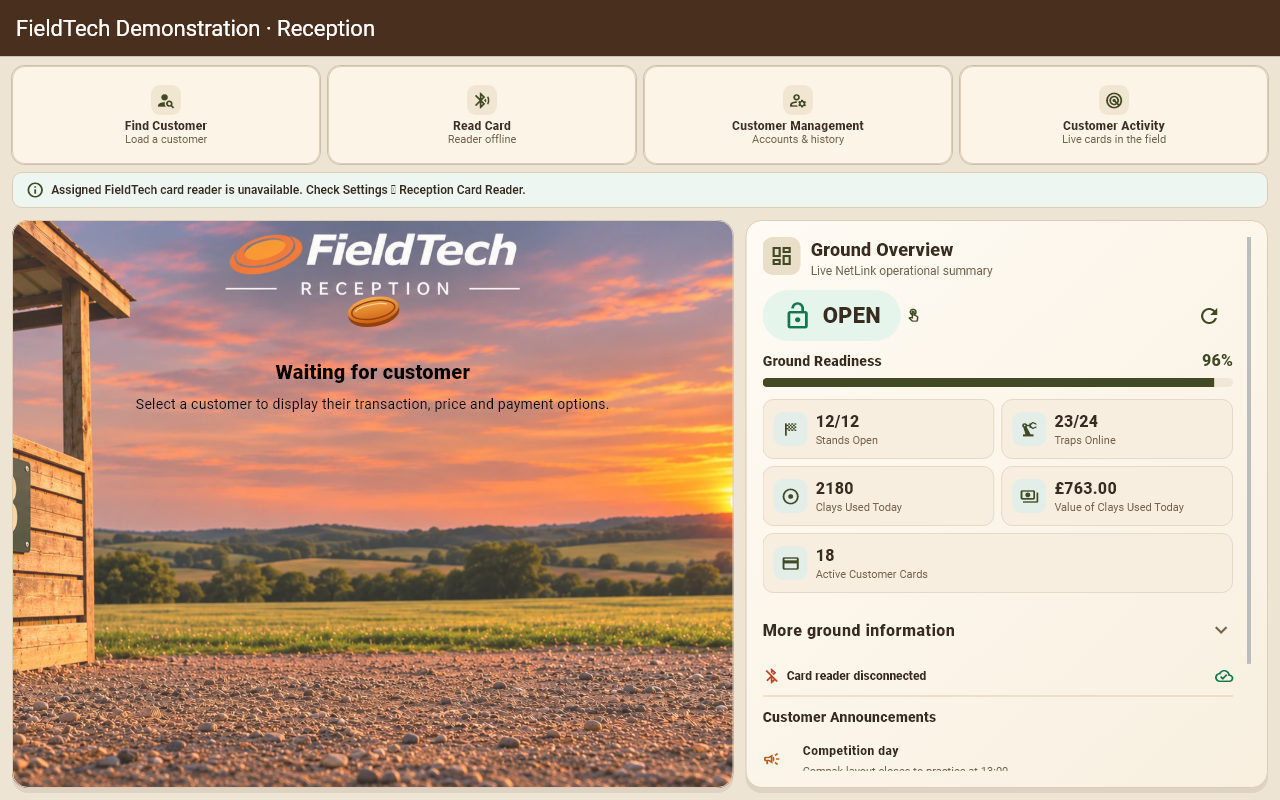
Reception home
See ground readiness, activity, clay usage and the main customer operations together. Start a new visit without switching between disconnected systems.
Explore this feature →From the first customer card to the day's financial reporting, Reception brings the operational and business records into one system.
Everything needed for a customer visit, from arrival to settlement.
See ground readiness, activity, clay usage and the main customer operations together. Start a new visit without switching between disconnected systems.
Explore this feature →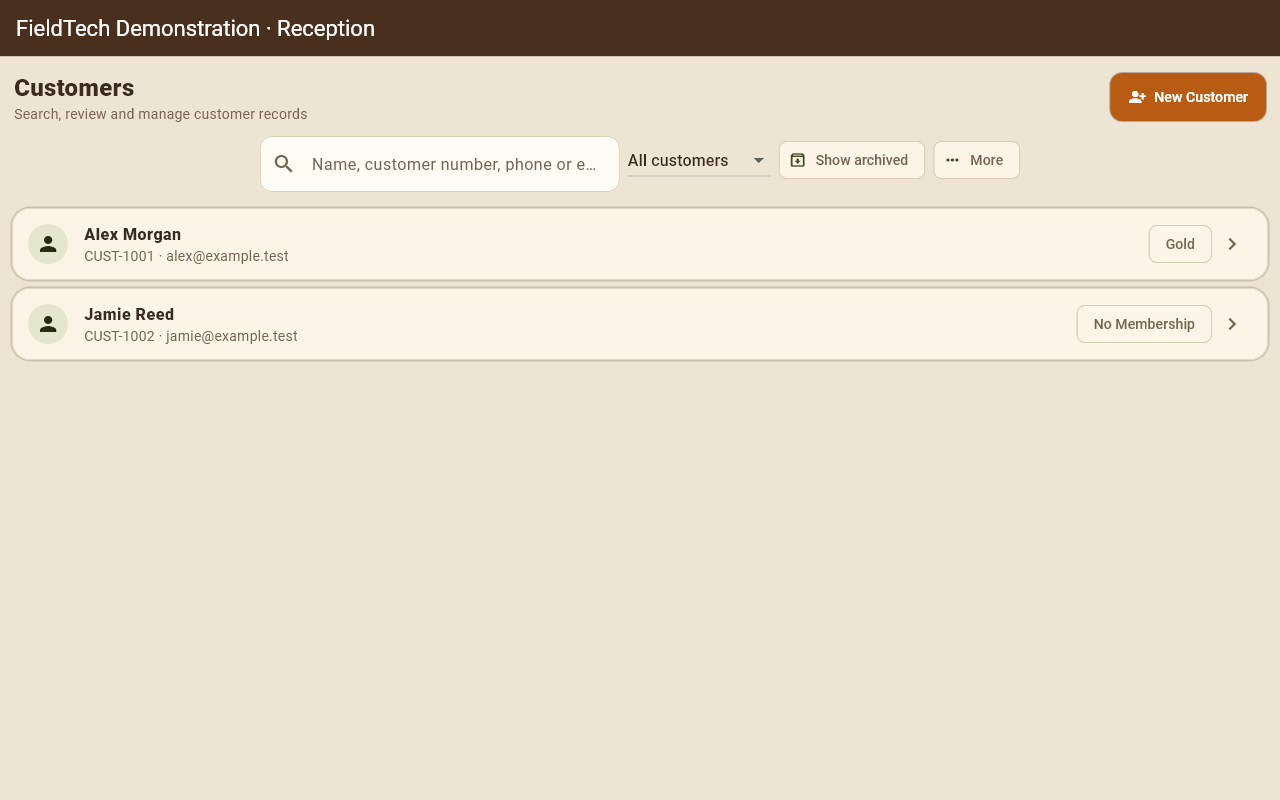
Search customer accounts, see membership status and open the appropriate customer workspace.
Explore this feature →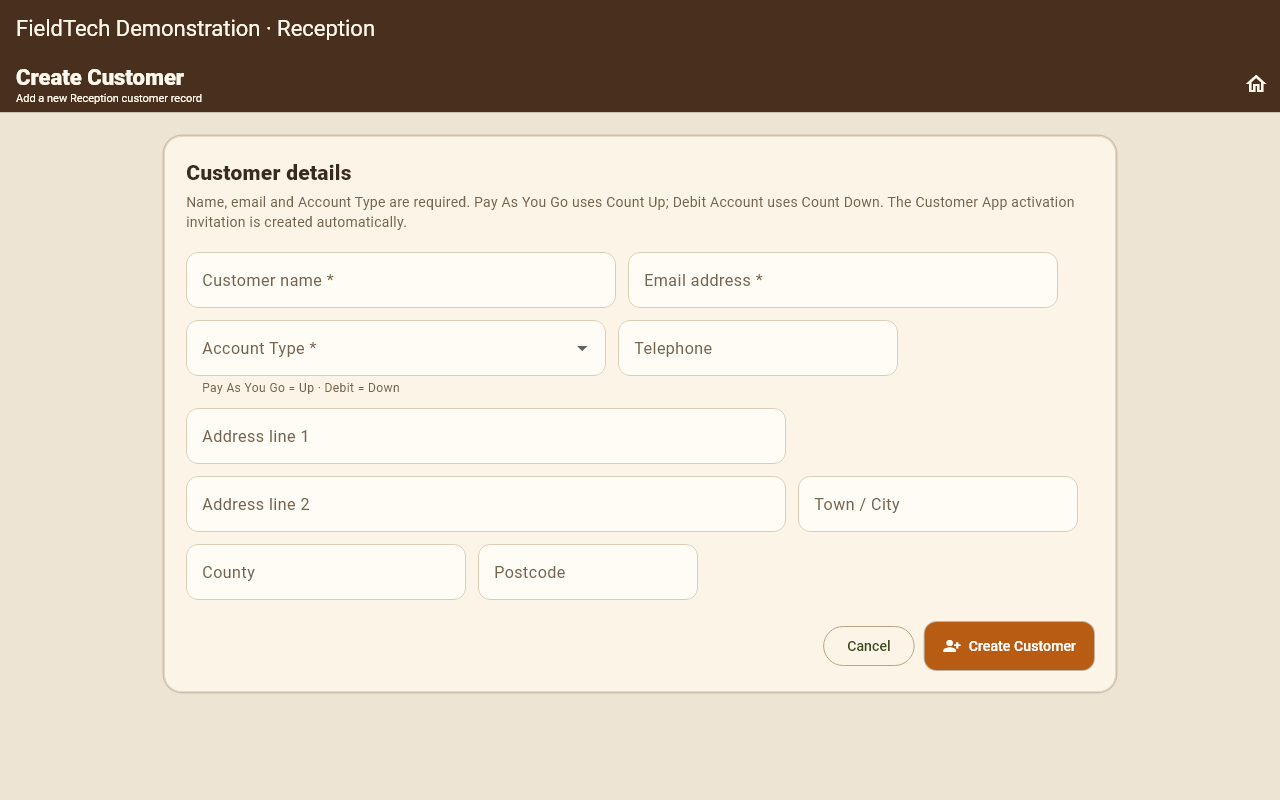
Create a customer with the correct account type, contact details and customer-app activation workflow.
Explore this feature →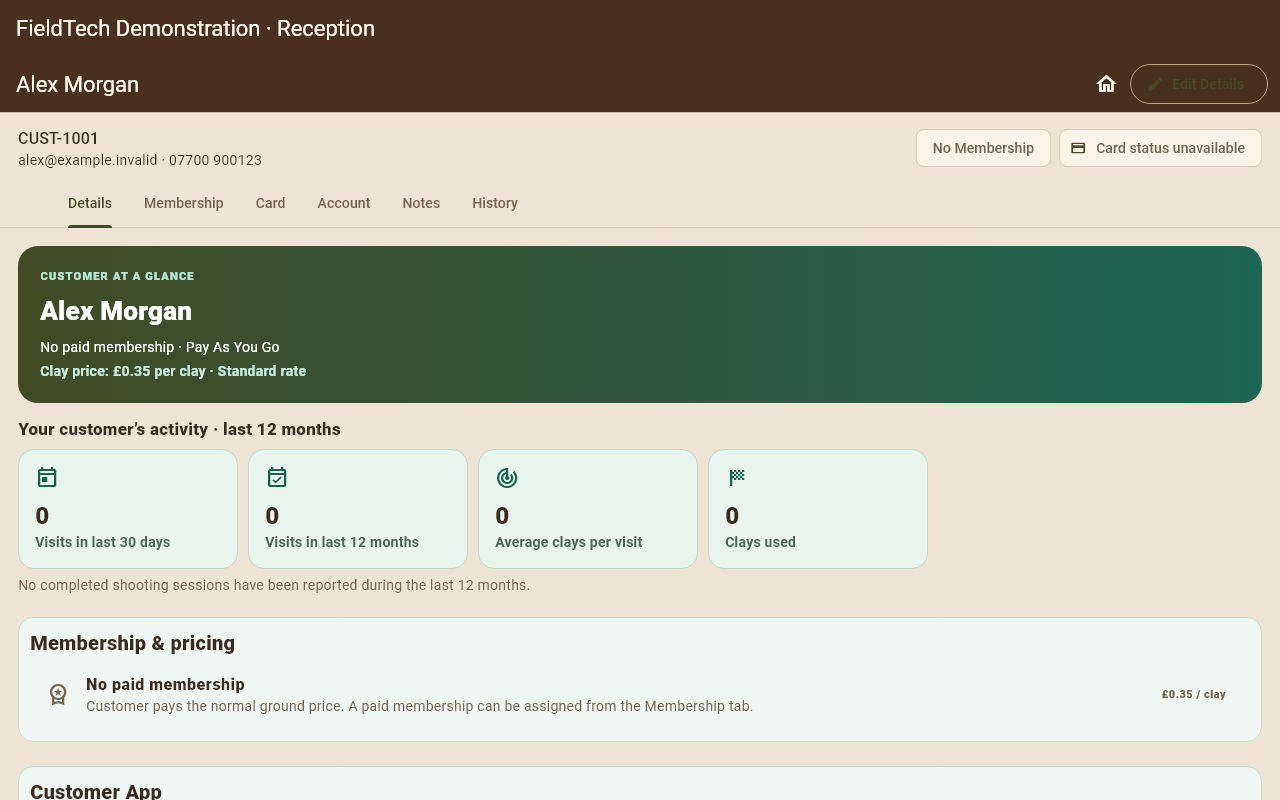
Inspect account, membership, card, notes and history tabs in one place. Review the recorded activity before making an account change.
Explore this feature →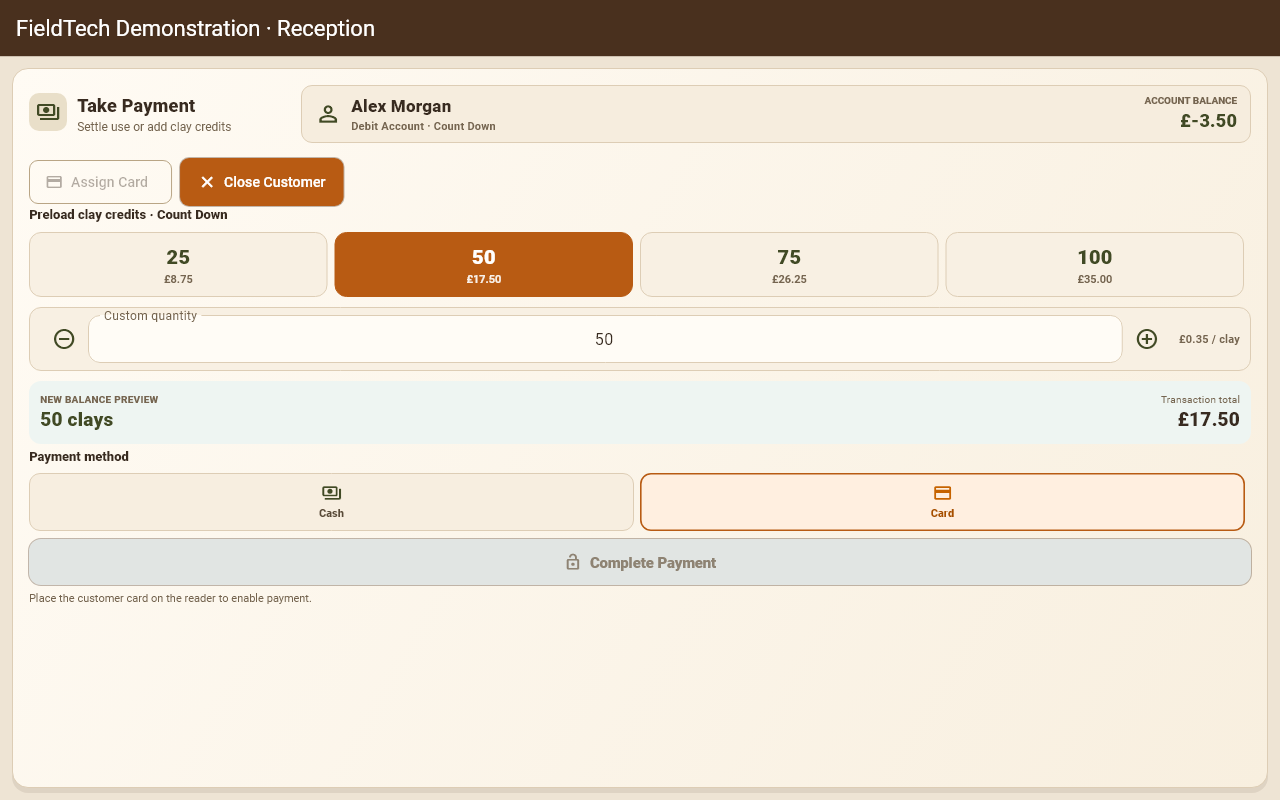
Review recorded charges and payments for the configured count-up or count-down workflow; settle the account at Reception.
Explore this feature →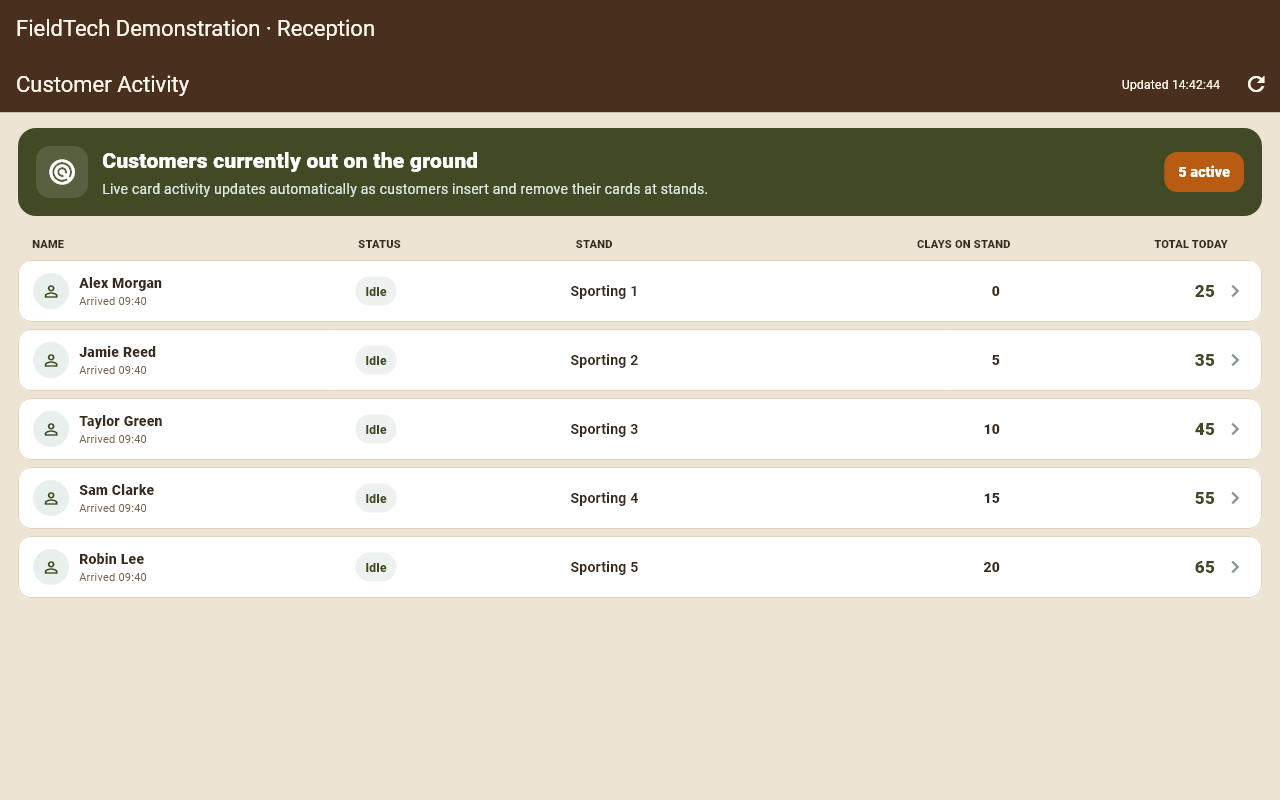
See active card holders, current or recent stand activity and clays recorded today, as supported by the reporting equipment.
Explore this feature →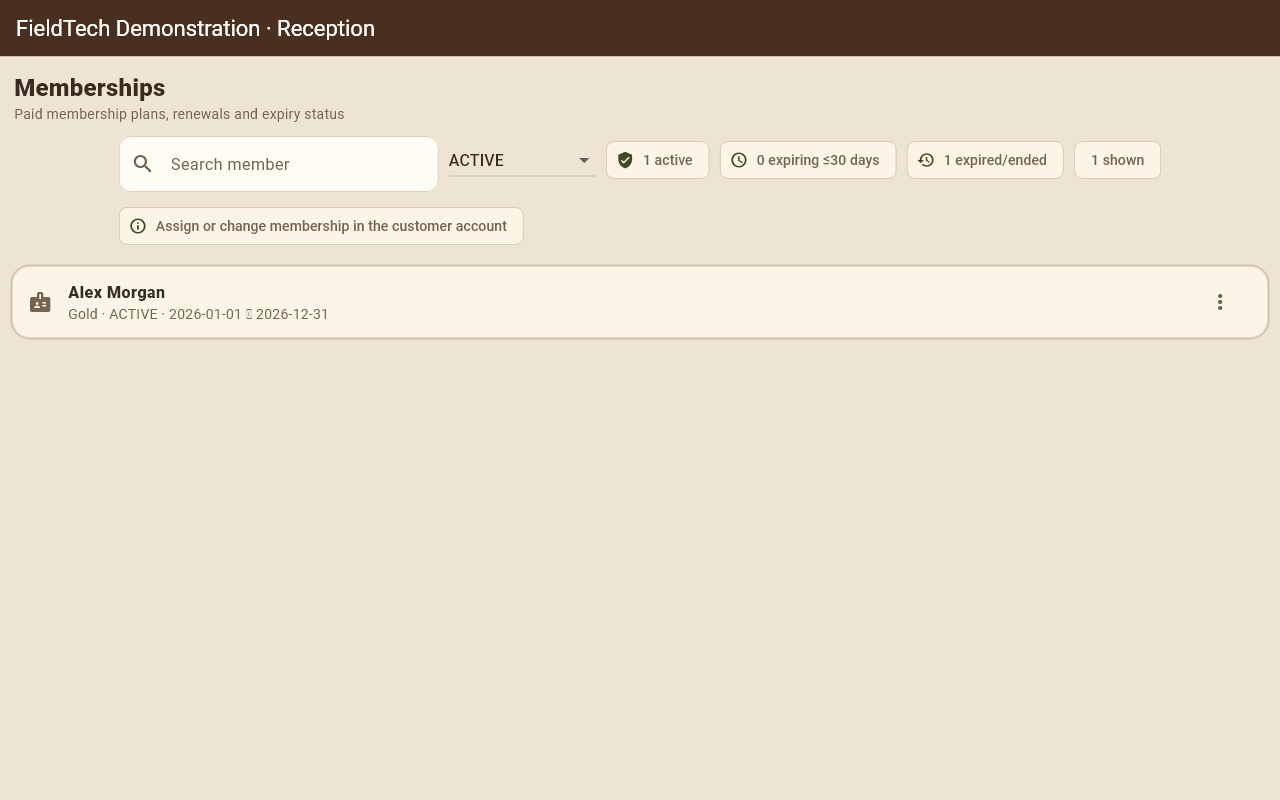
Manage membership dates, renewals and status. Membership-based clay pricing can form part of the account workflow.
Explore this feature →See the financial and operational records behind the day's shooting.
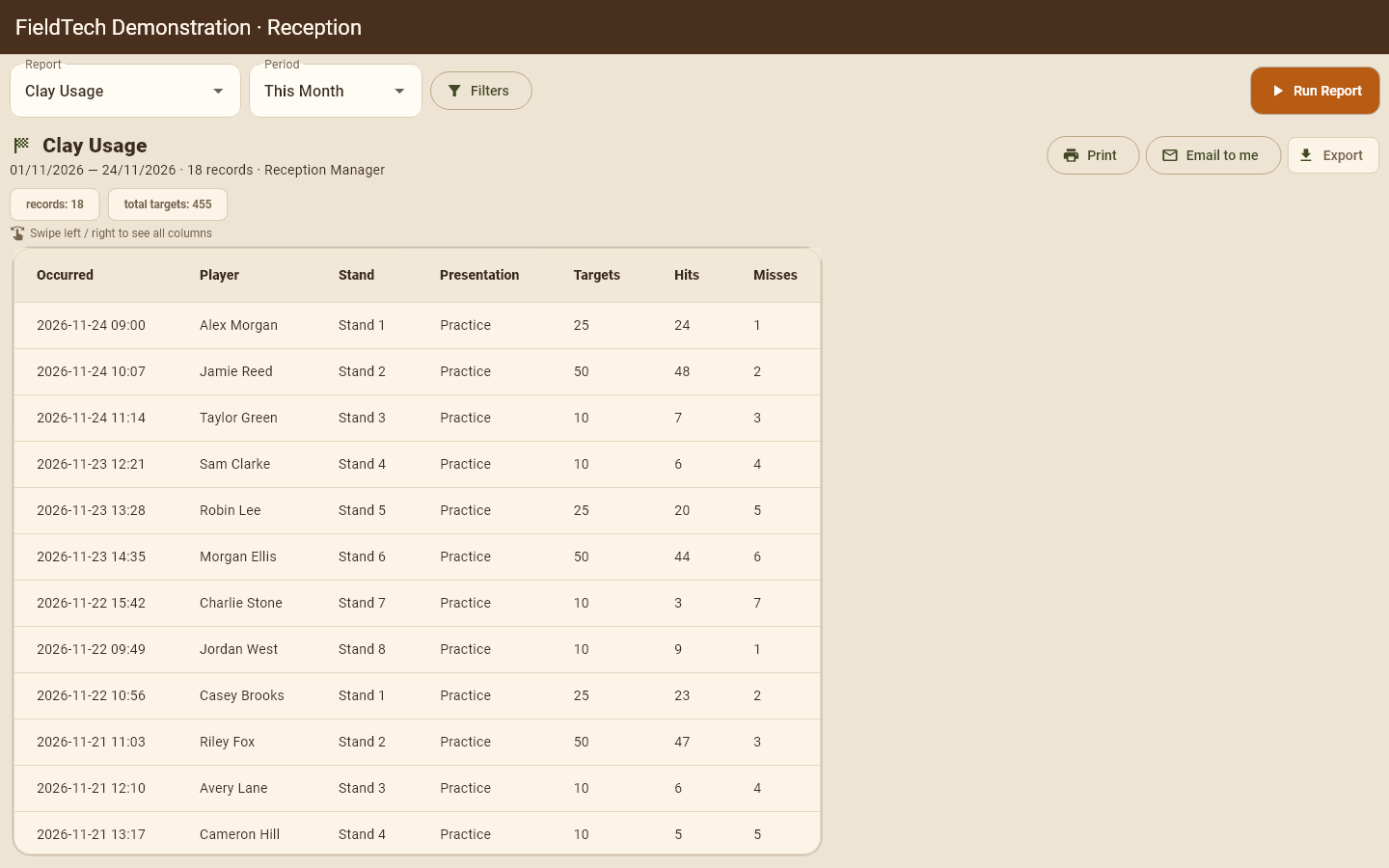
Choose from 12 reporting categories, select periods and available filters, and run, print, export or email the supported reports.
Explore this feature →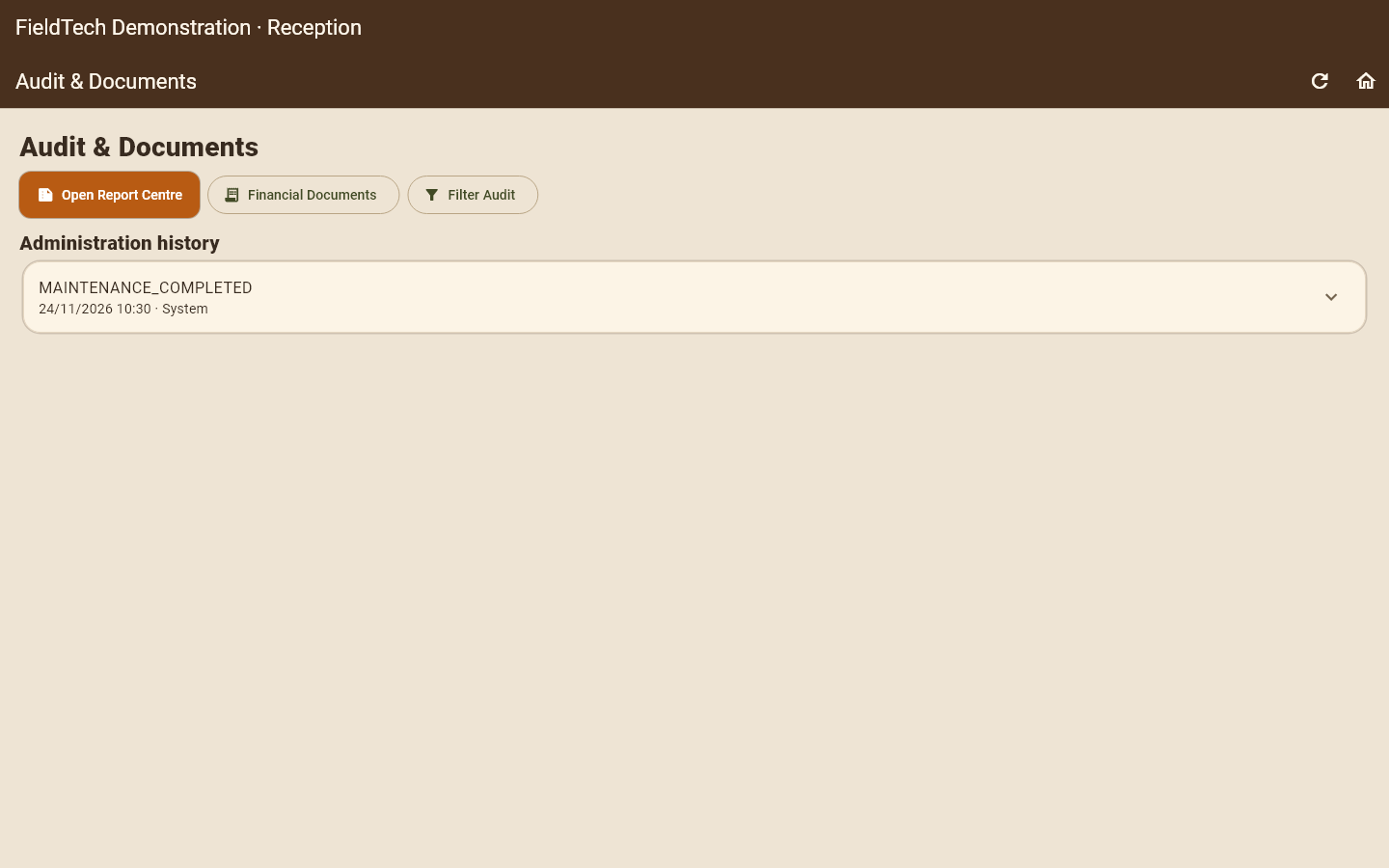
Trace administrative activity and access financial-document search and reporting from the audit workspace.
Explore this feature →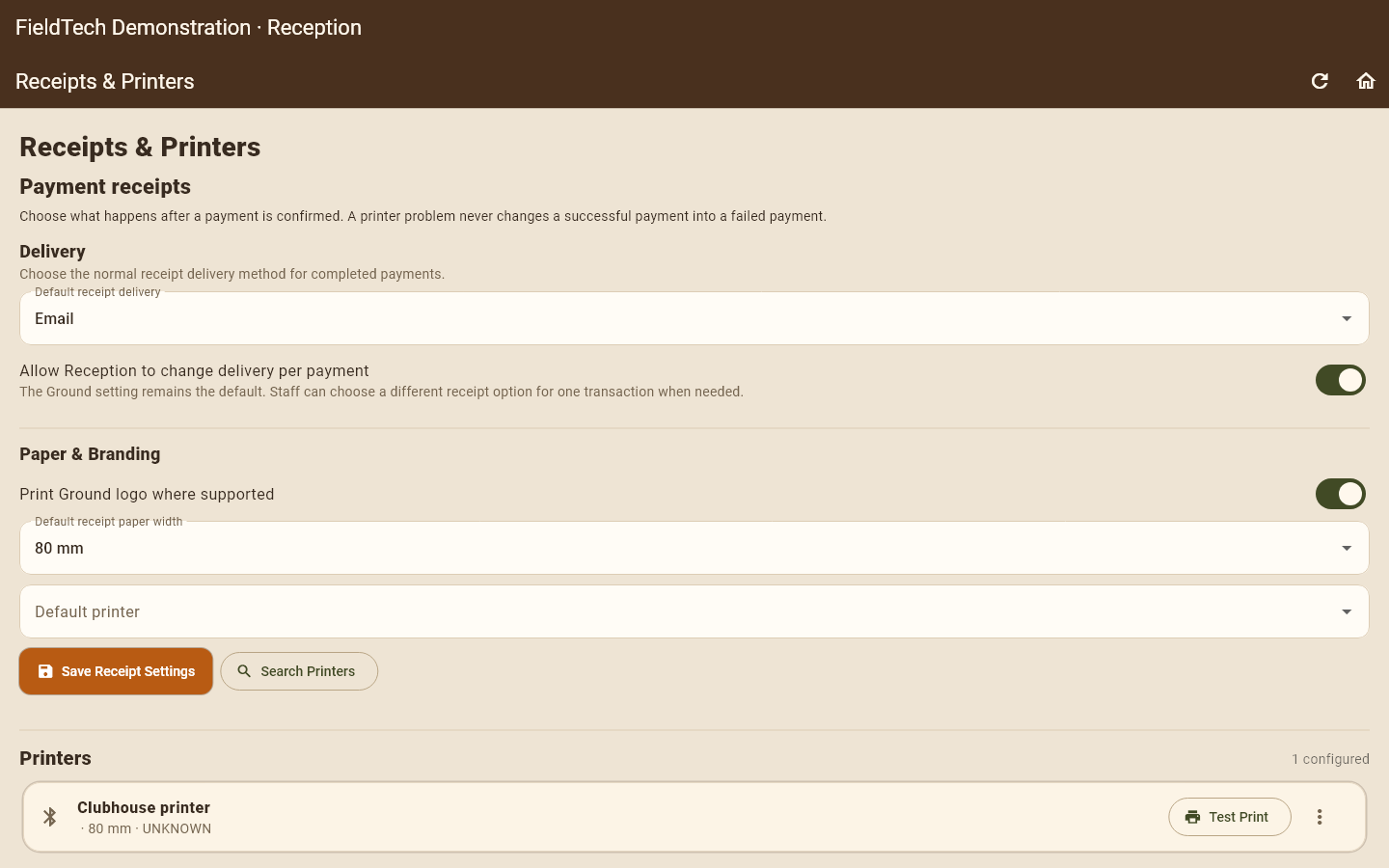
Set receipt delivery preferences, branding and printer settings. Compatible document printing is configured separately.
Explore this feature →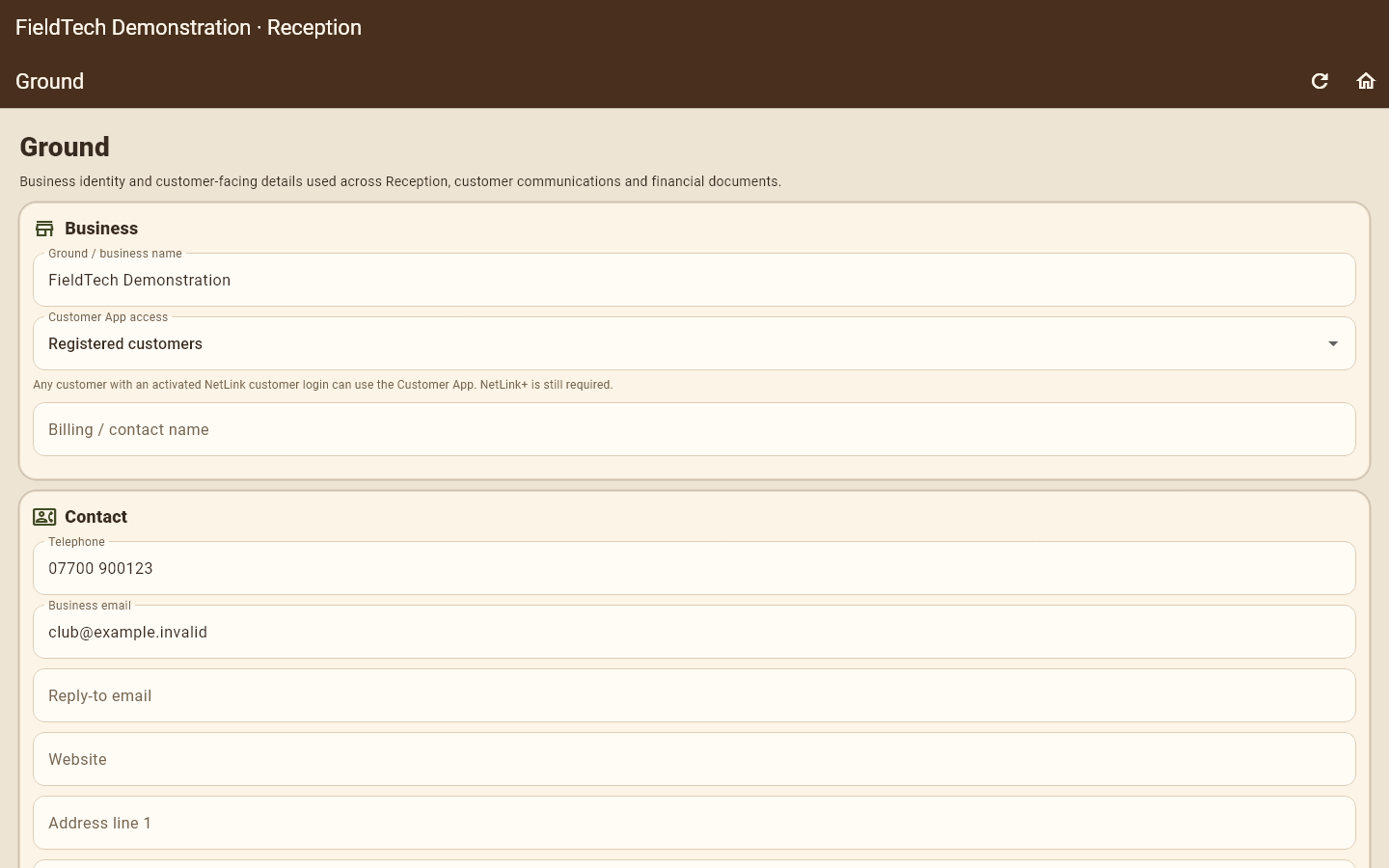
Manage the ground's business information, customer-facing identity and financial document details.
Explore this feature →See where attention is needed, and communicate changes to staff and customers.
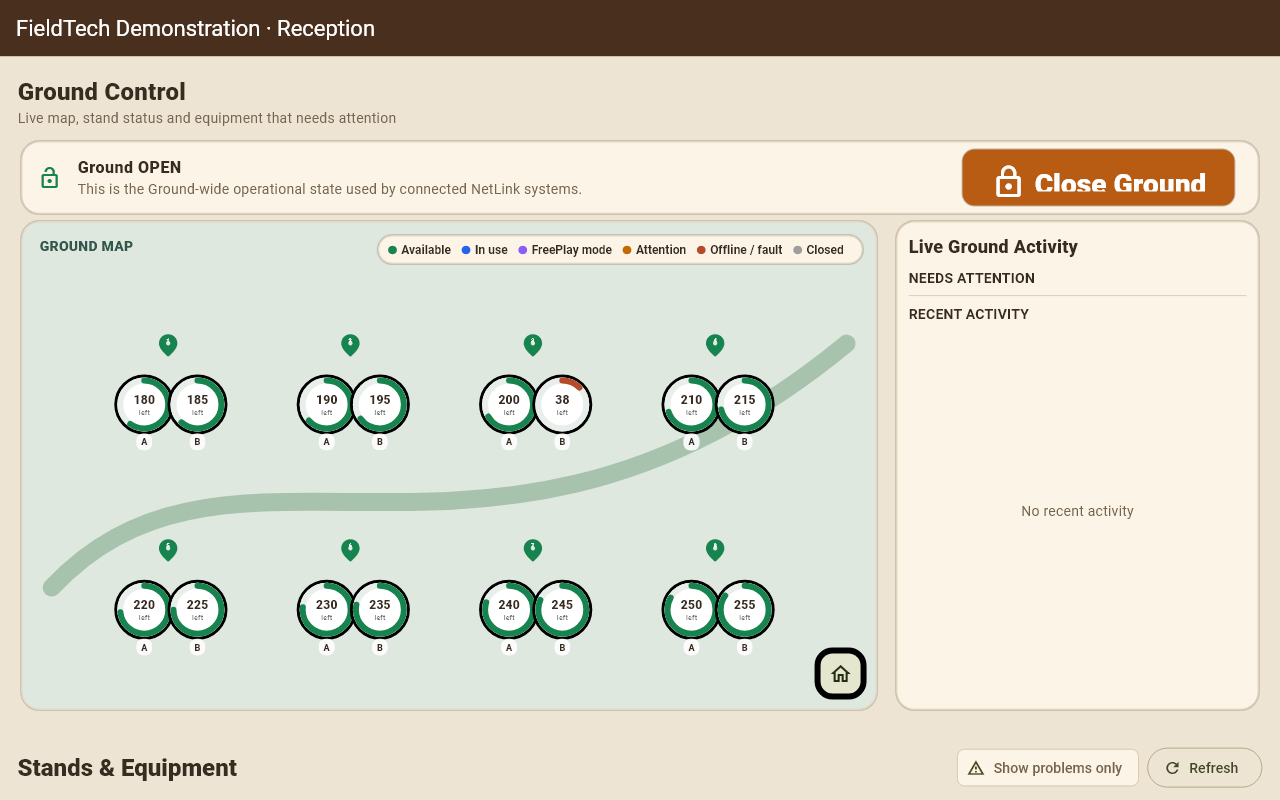
See the configured stands, associated traps, connectivity and clay availability. Investigate issues before reopening a stand.
Explore this feature →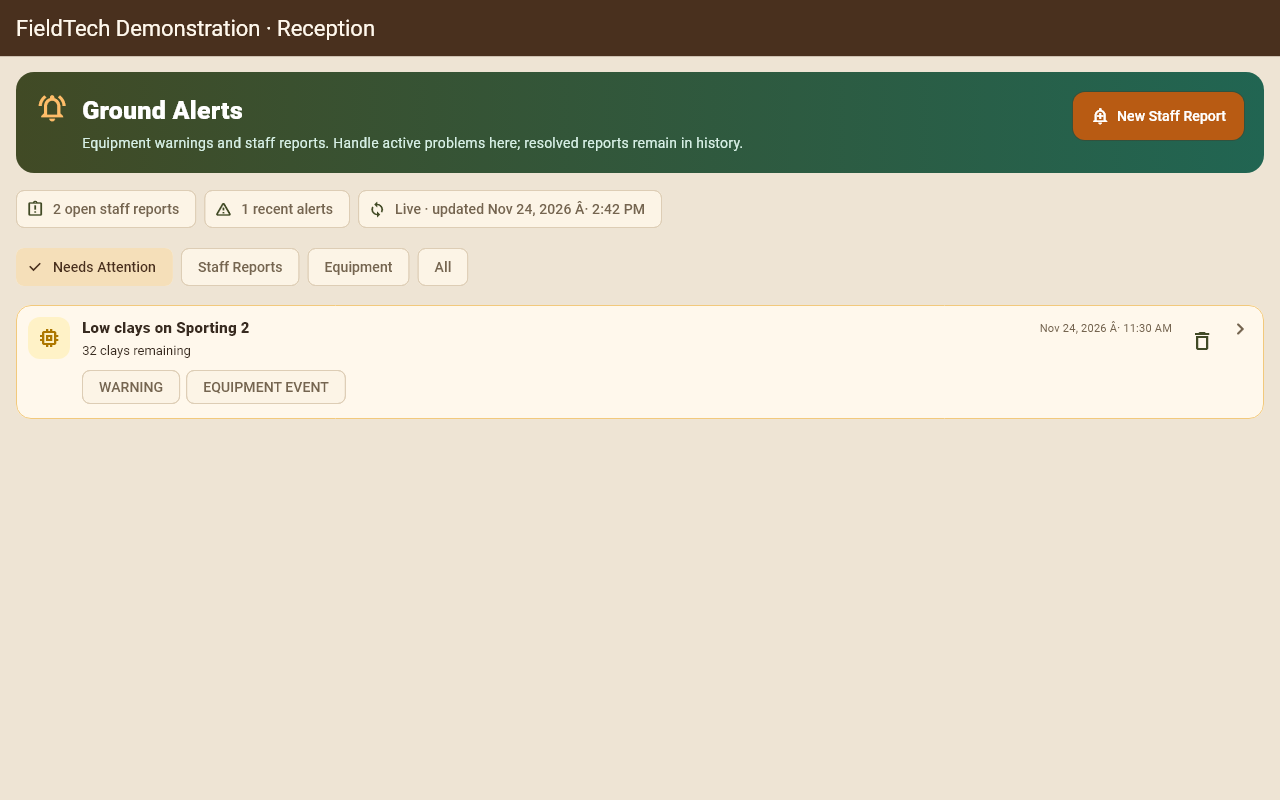
Review equipment warnings and staff reports, including low-clay conditions. Address the underlying issue instead of simply overlooking the warning.
Explore this feature →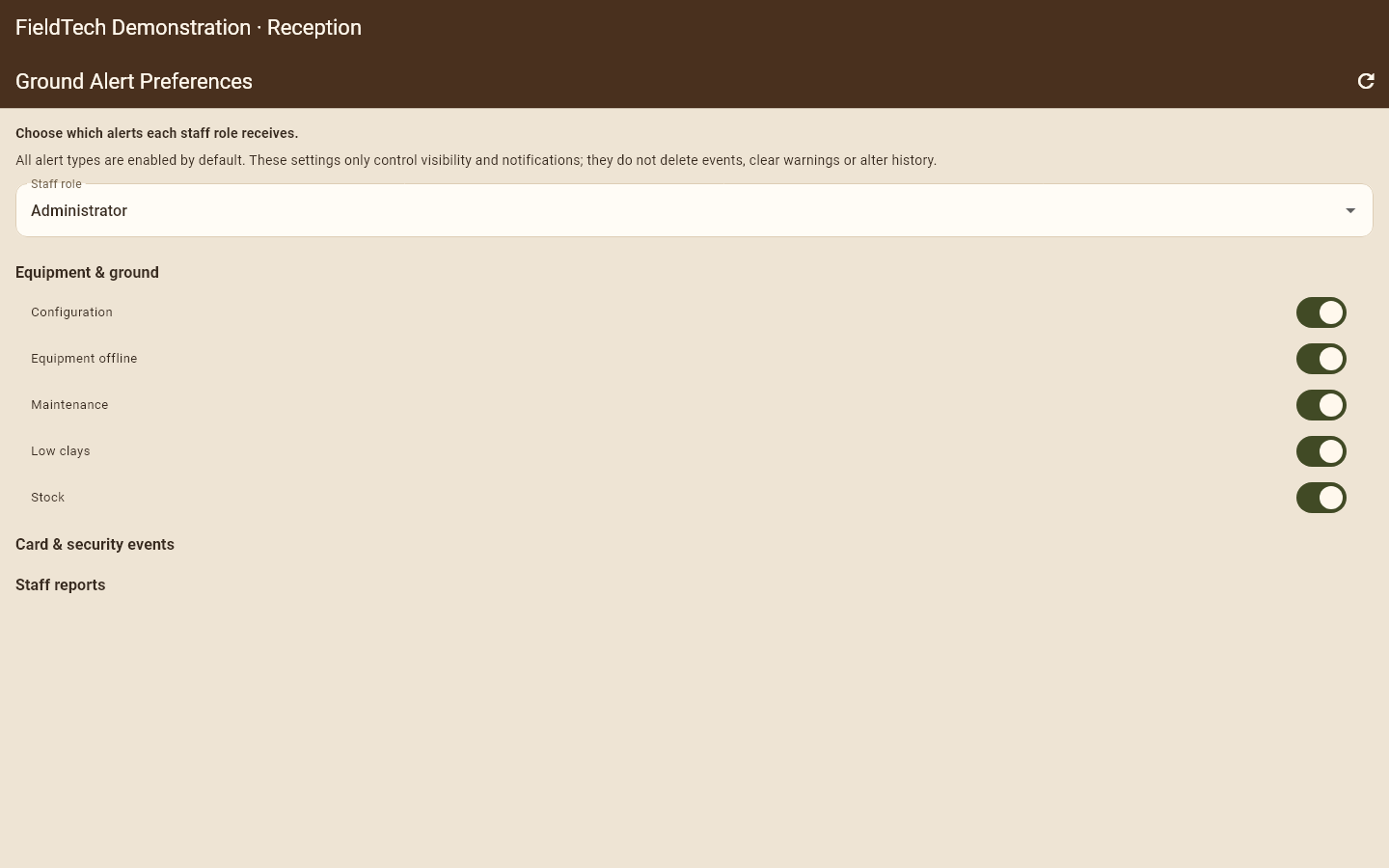
Choose which alert types each staff role receives. Changing visibility does not delete historical records or resolve an equipment issue.
Explore this feature →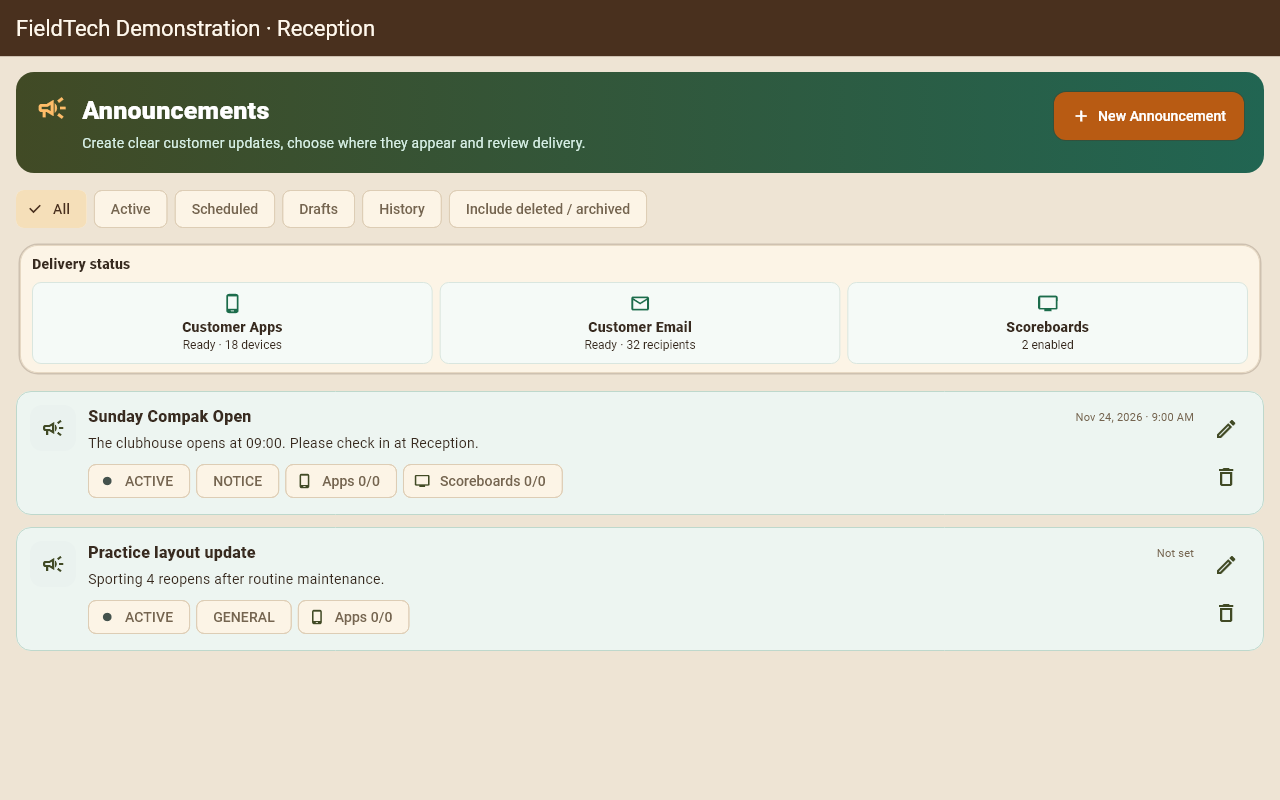
Compose and manage notices for the supported customer app, email and scoreboard channels, subject to delivery settings.
Explore this feature →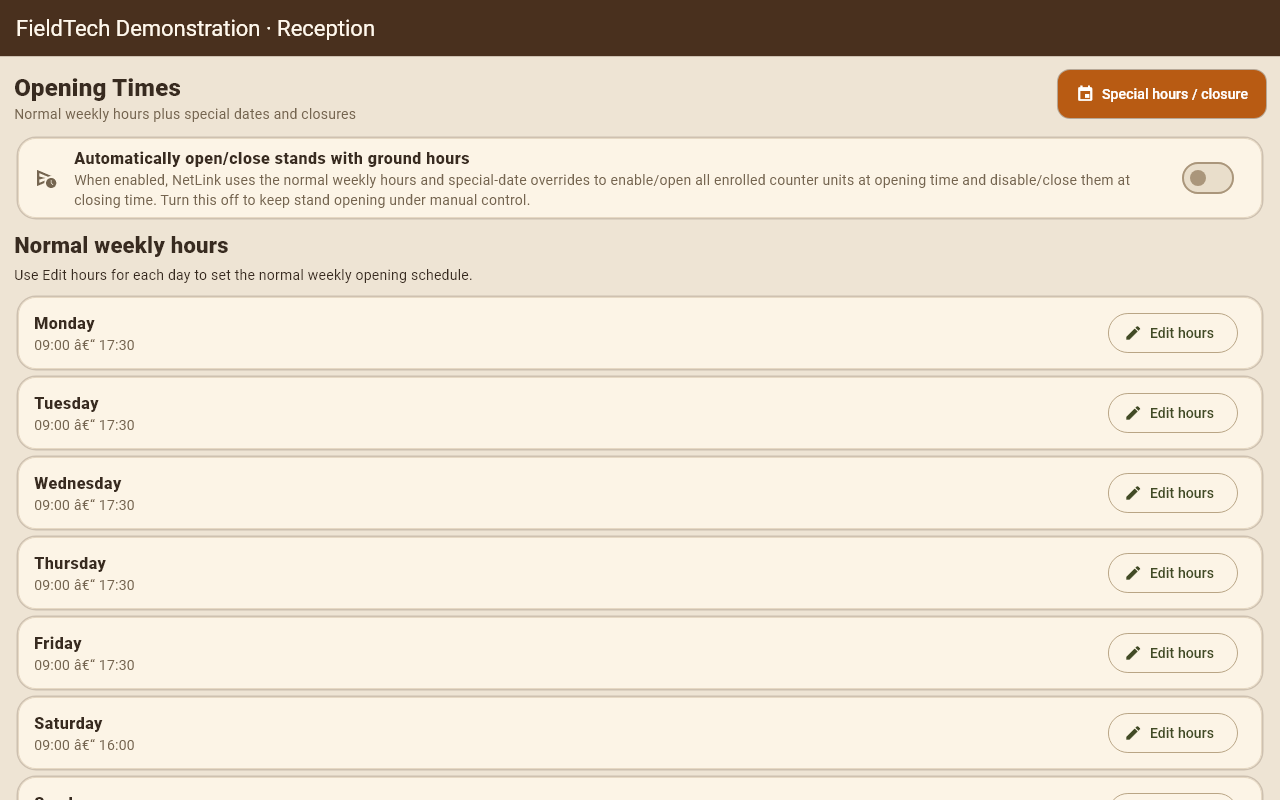
Maintain regular opening hours and special dates. Configure supported stand opening and closing automation where appropriate.
Explore this feature →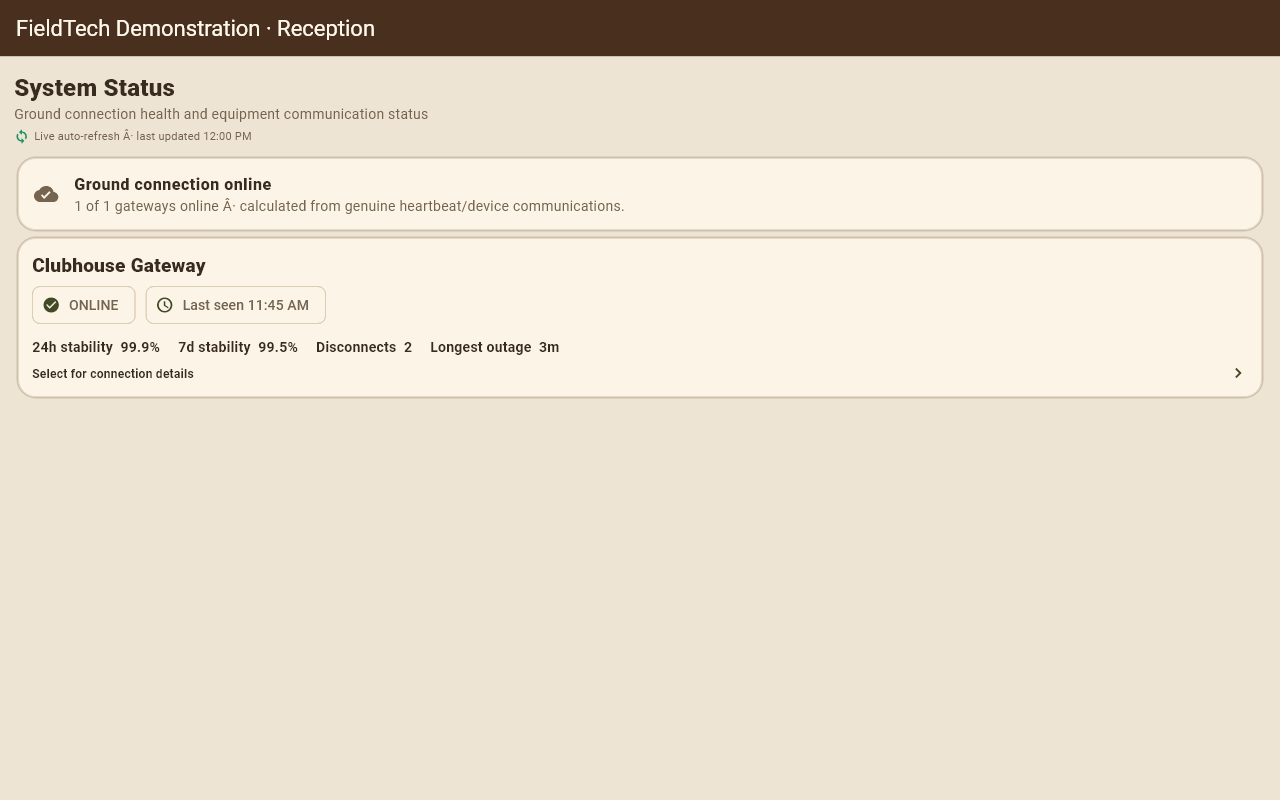
Review last contact, connection stability and disconnect history for the clubhouse gateway.
Explore this feature →Authorised staff have dedicated setup and administration workspaces.
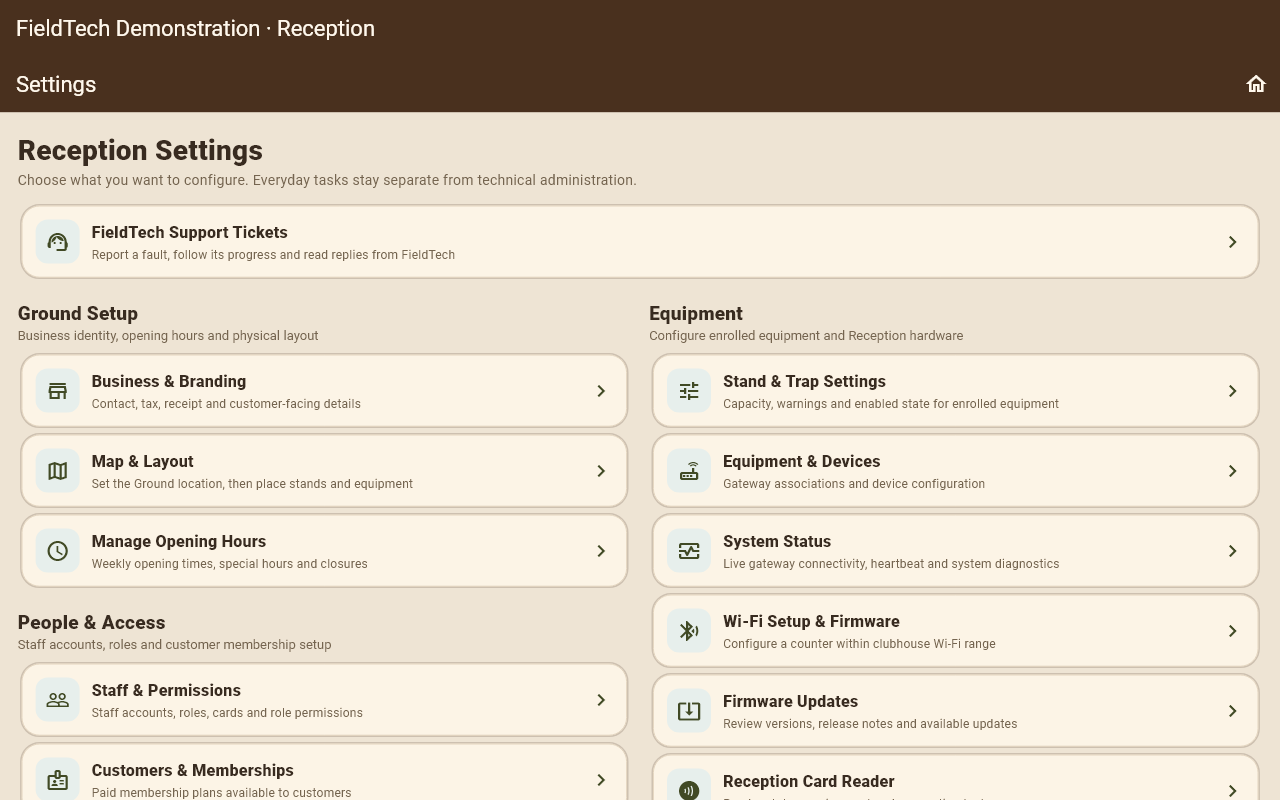
A single administrative starting point for the ground, equipment, people, accounts and system settings.
Explore this feature →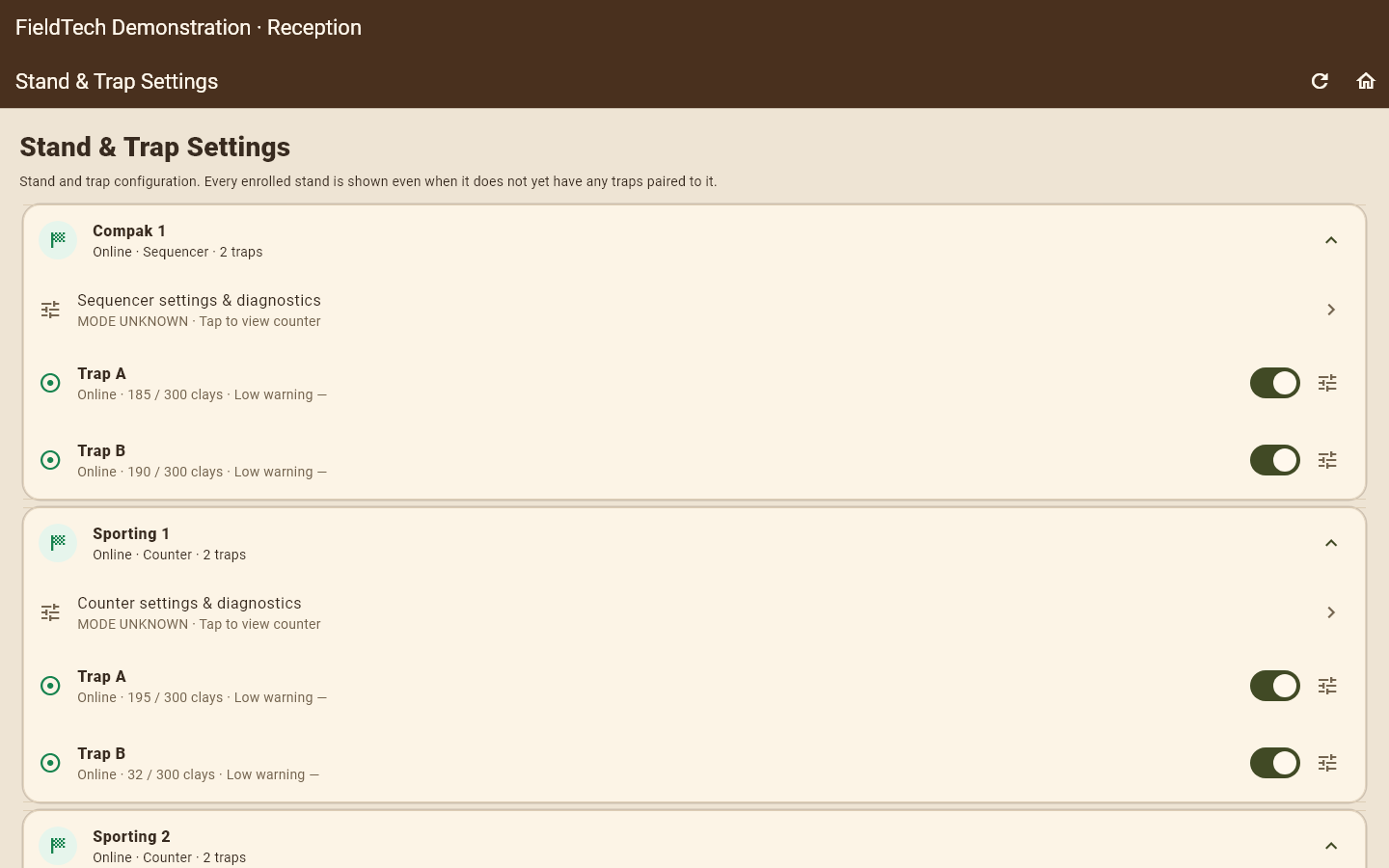
Review configured stands and receivers, associated traps and operational availability, with access to compatible counter or sequencer settings.
Explore this feature →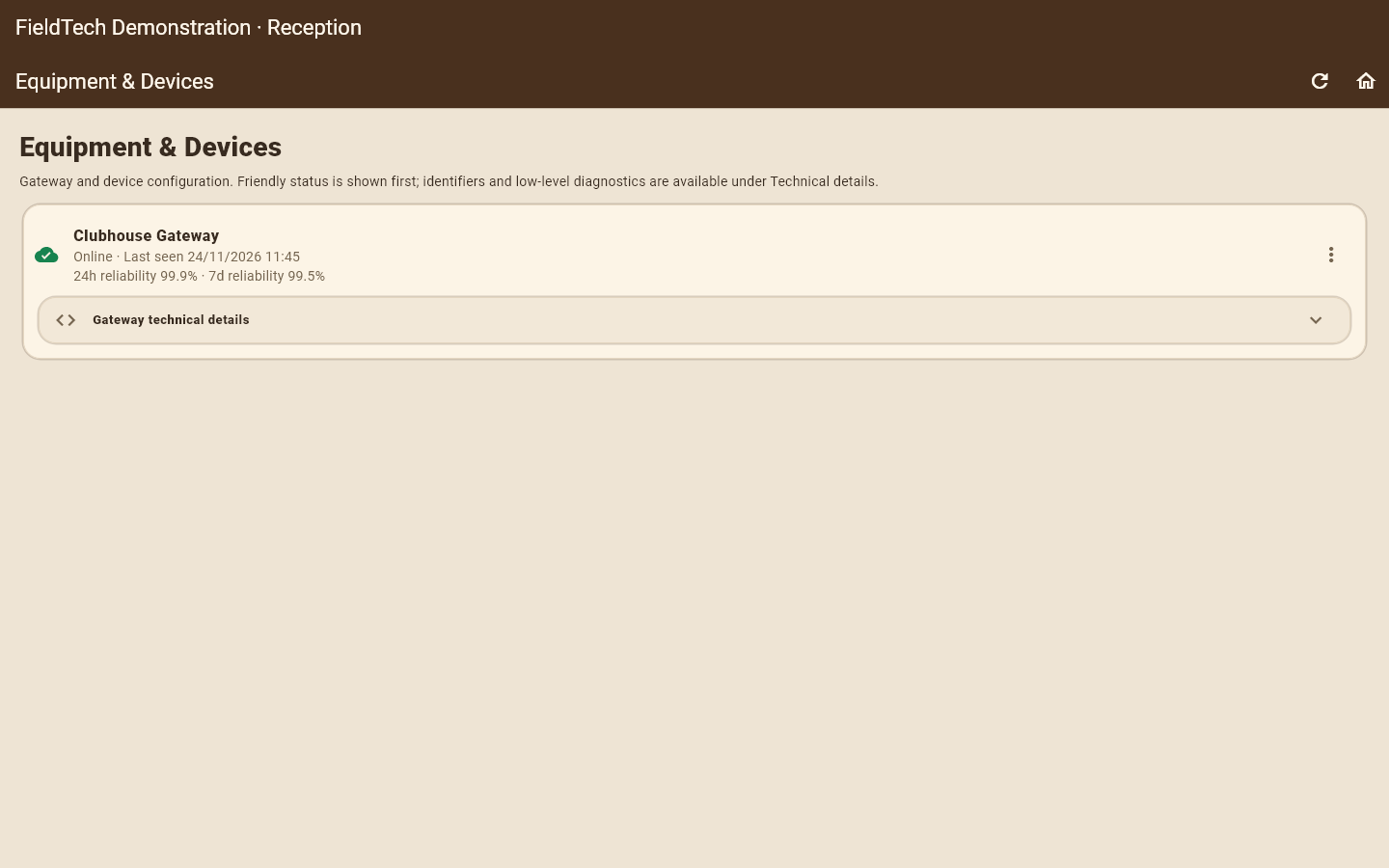
Manage gateway and equipment records and inspect supported technical details before changing a configuration.
Explore this feature →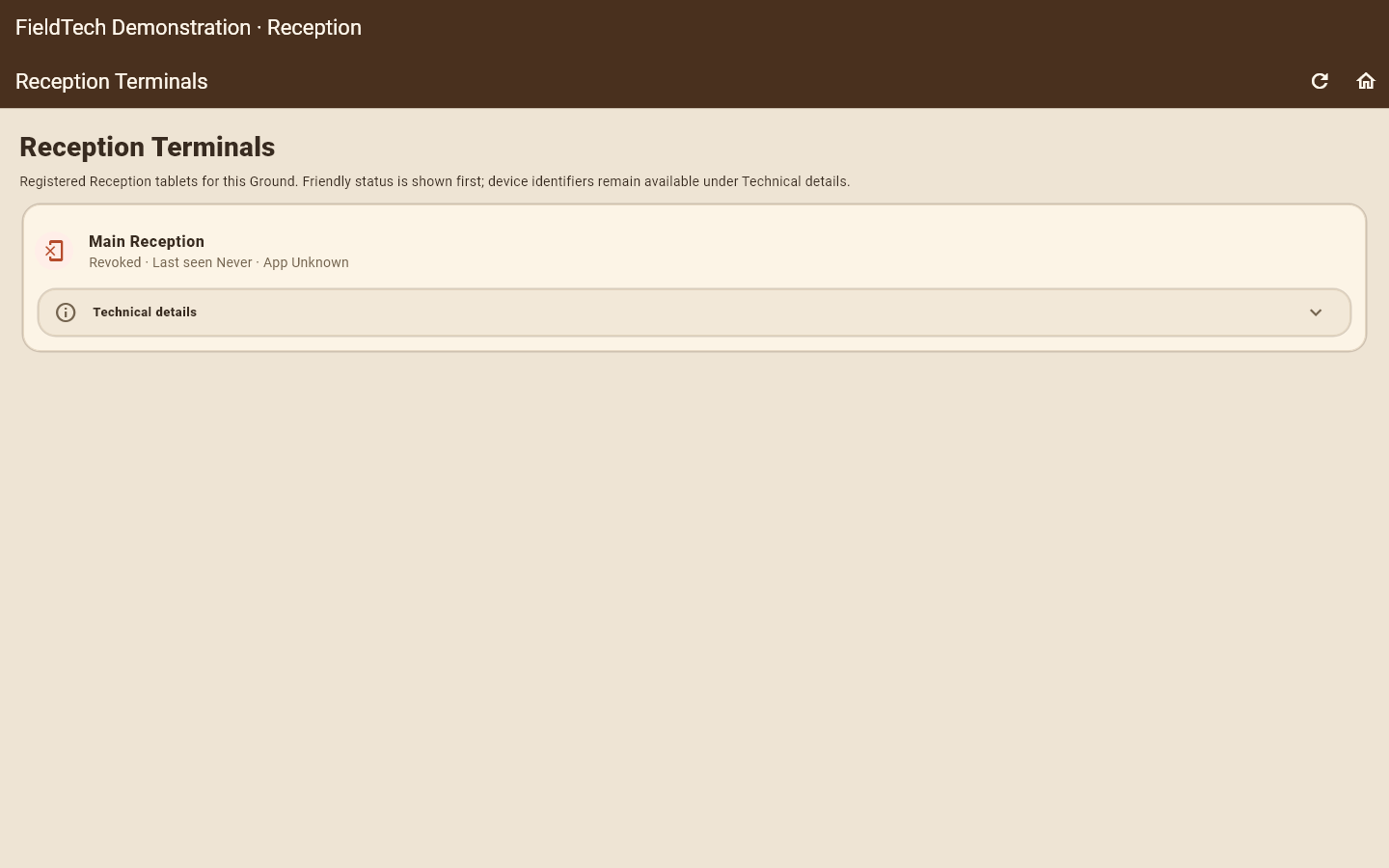
Review enrolled Reception terminals and their available status information; manage replacements through authorised procedures.
Explore this feature →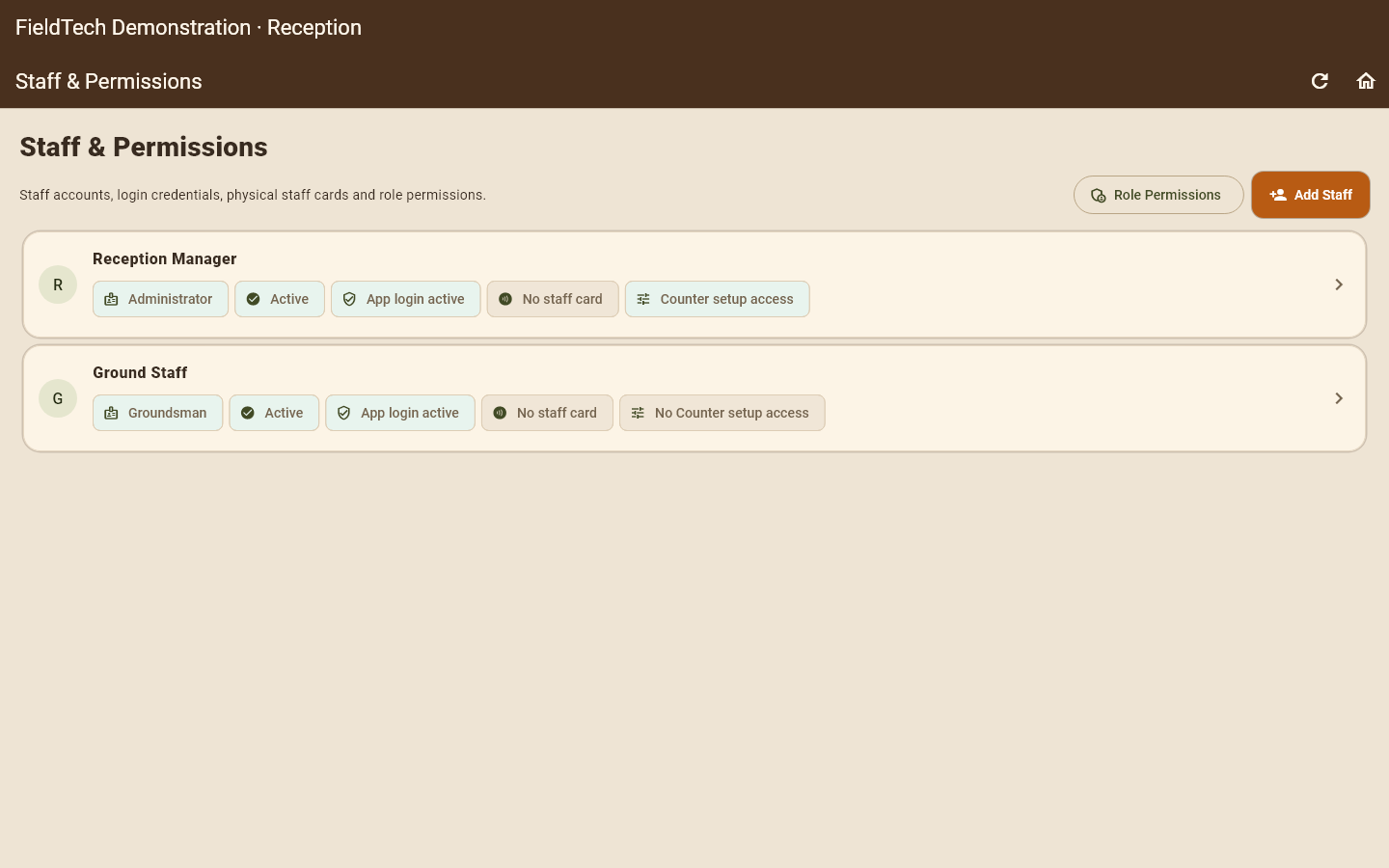
Create and manage staff accounts and their role assignments. Separate everyday Reception work from administrative responsibilities.
Explore this feature →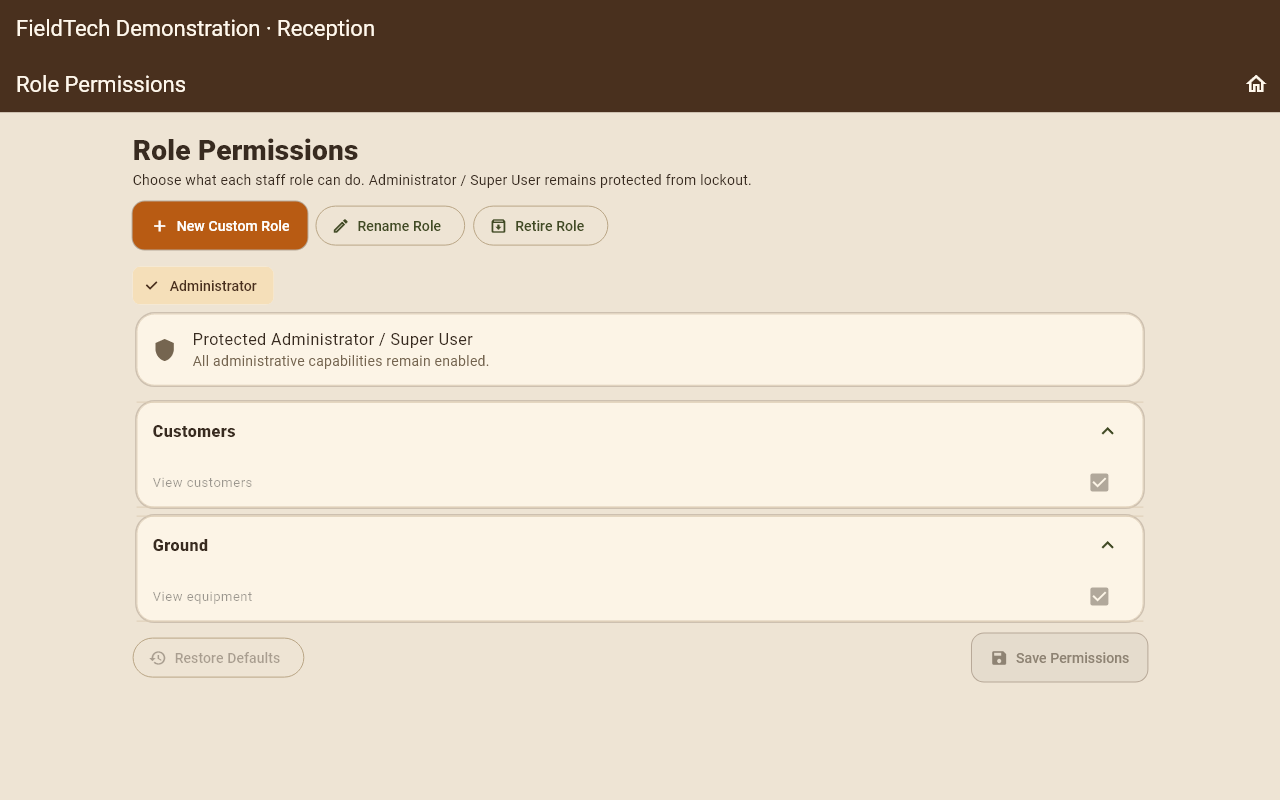
Inspect and configure role capabilities. The protected administrator role retains its recovery and oversight responsibilities.
Explore this feature →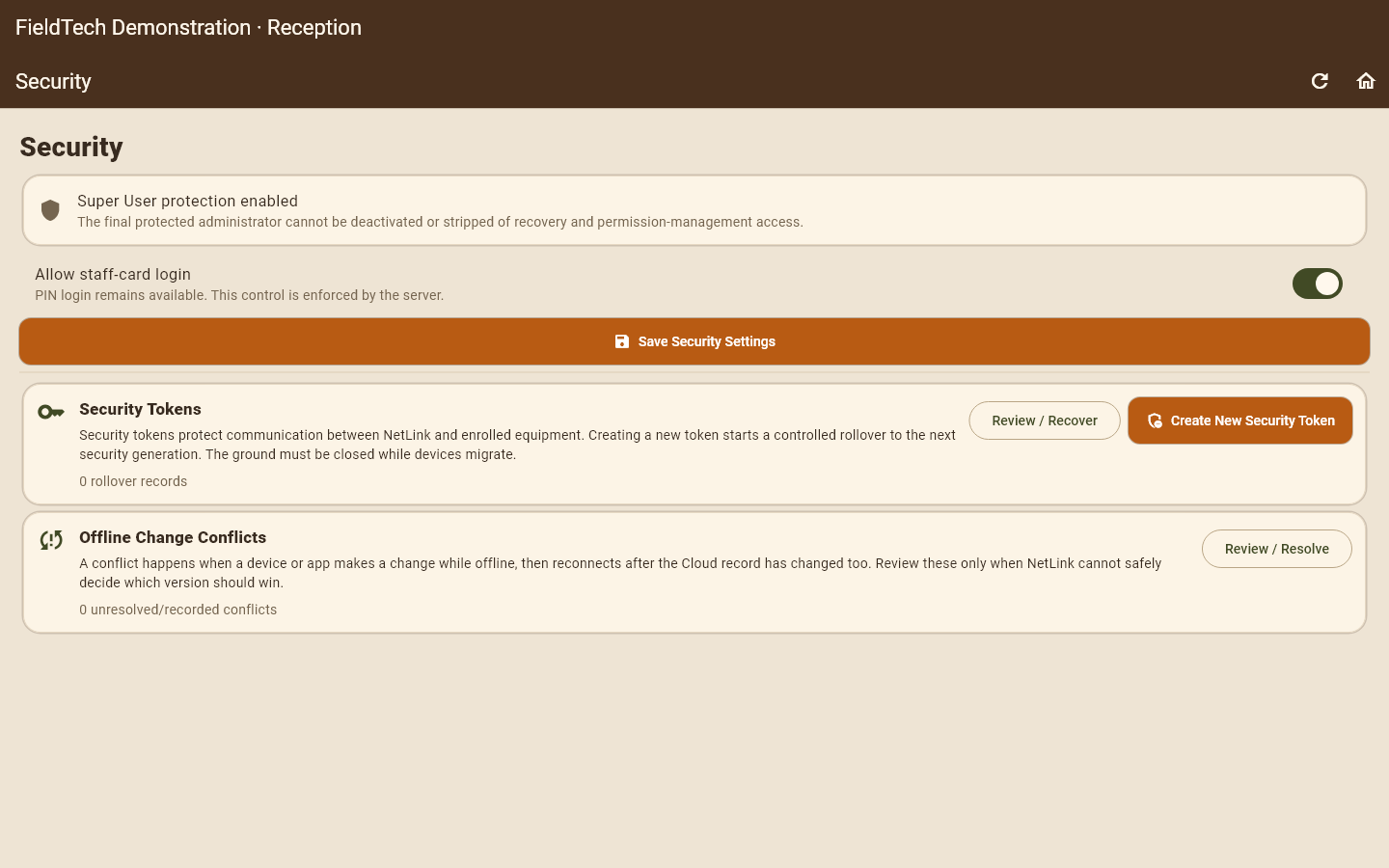
Use authorised security administration, controlled token changes and offline-conflict review. Sensitive operations remain permission-controlled.
Explore this feature →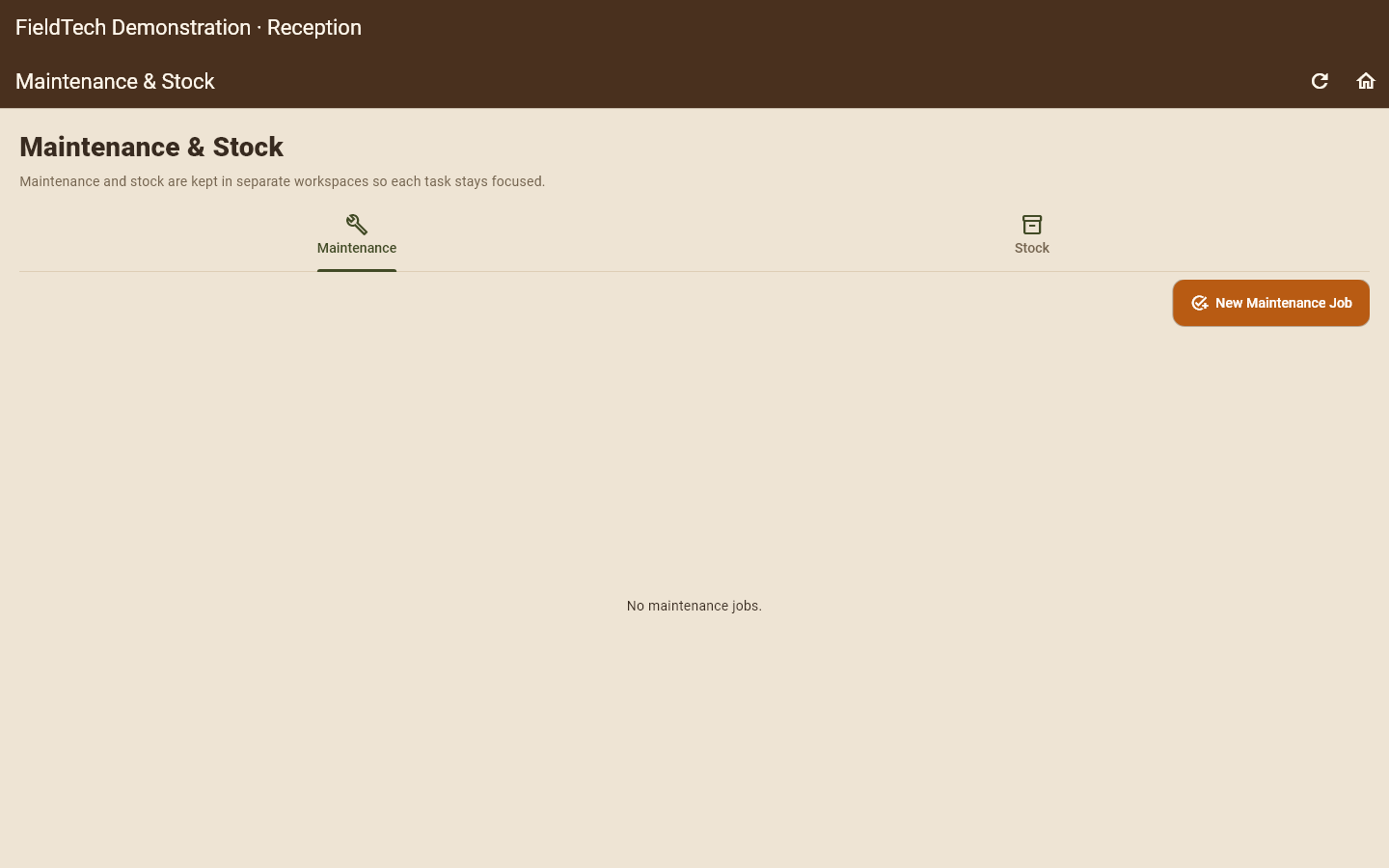
Manage maintenance jobs and stock records, alongside operational trap usage and service information.
Explore this feature →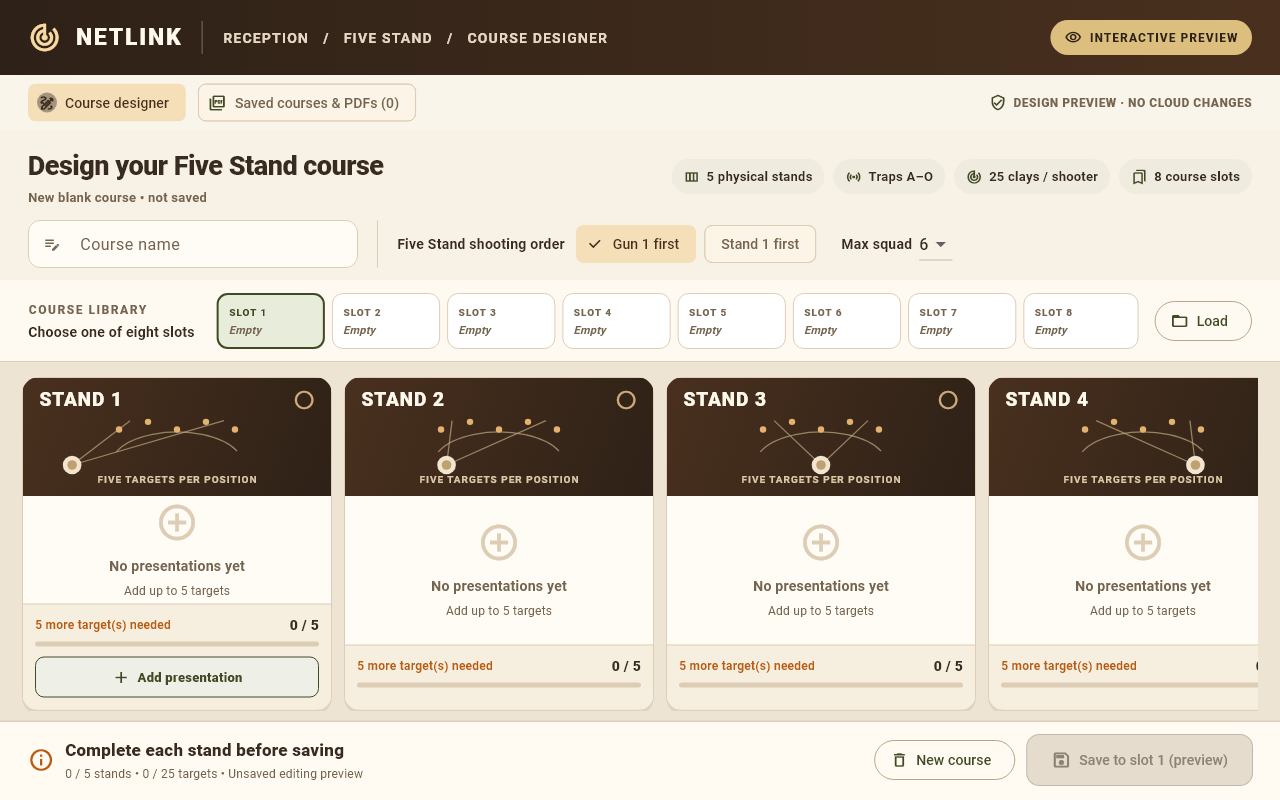
Configure and review the course in the appropriate sequencer workspace before using compatible stand equipment.
Explore this feature →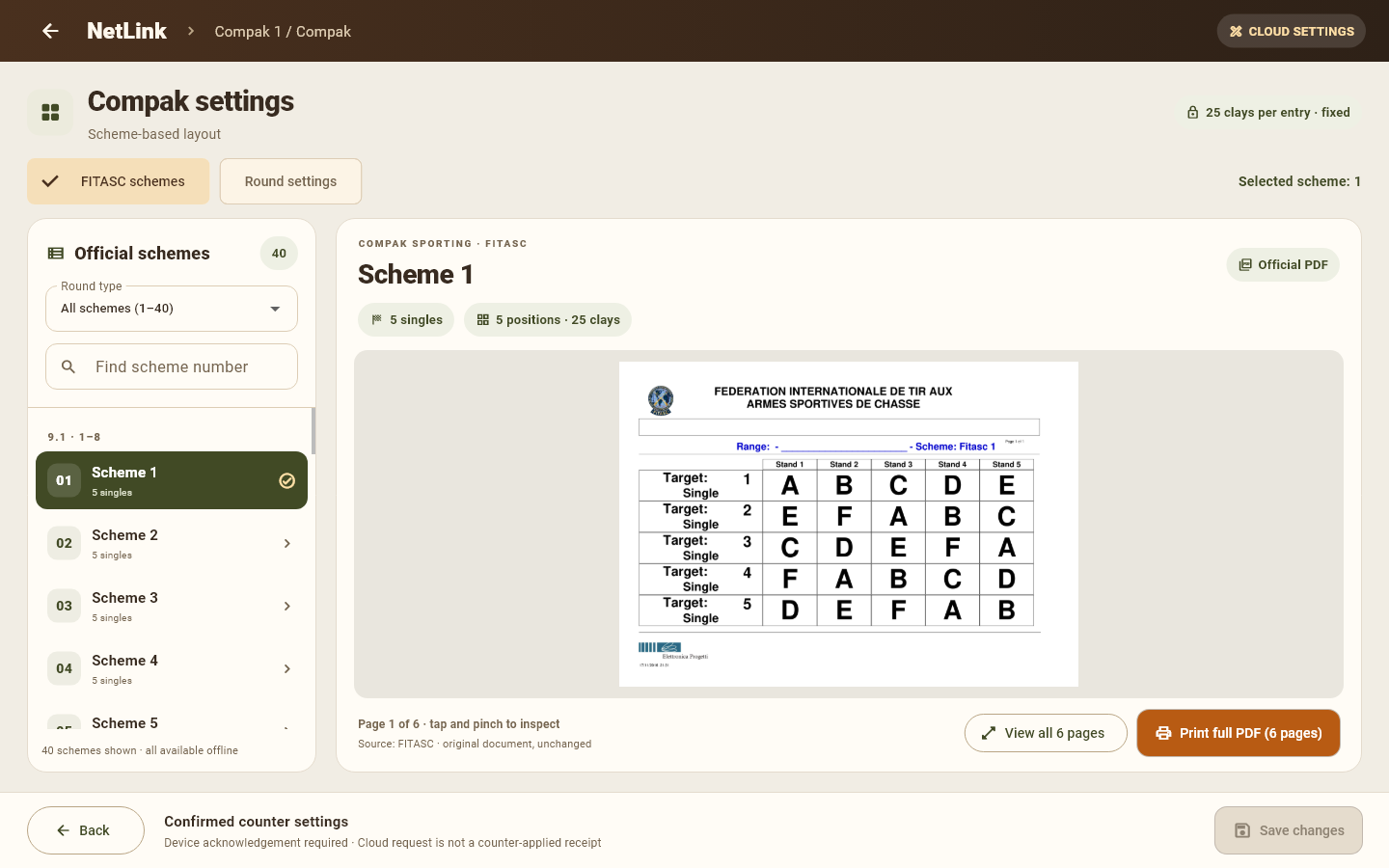
Browse all 40 bundled FITASC schemes, filter by round type or find a scheme number. Review the selected official PDF alongside the list before requesting a settings change.
Explore this feature →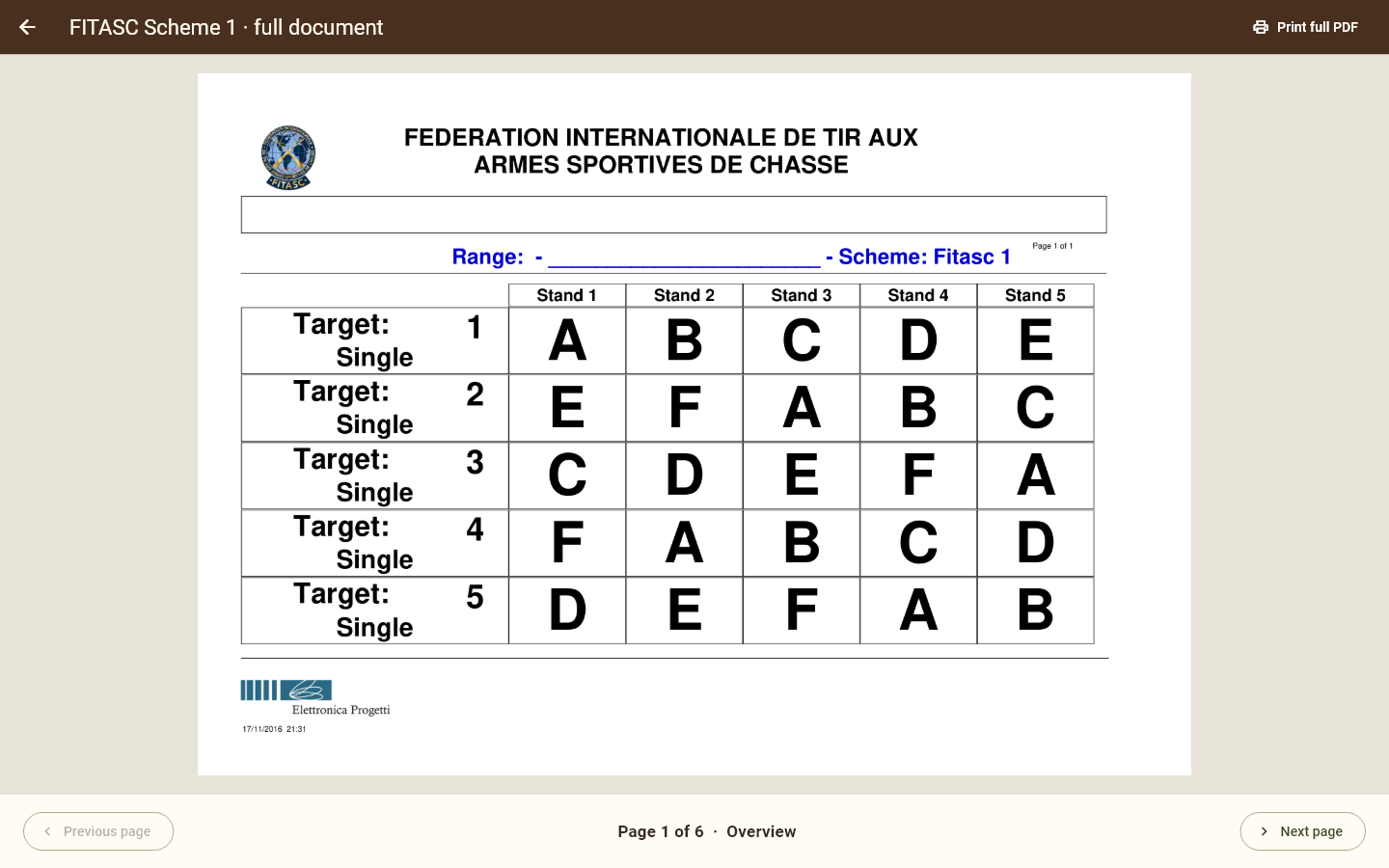
Open the complete selected scheme, inspect its pages and use the supported Reception printing workflow.
Explore this feature →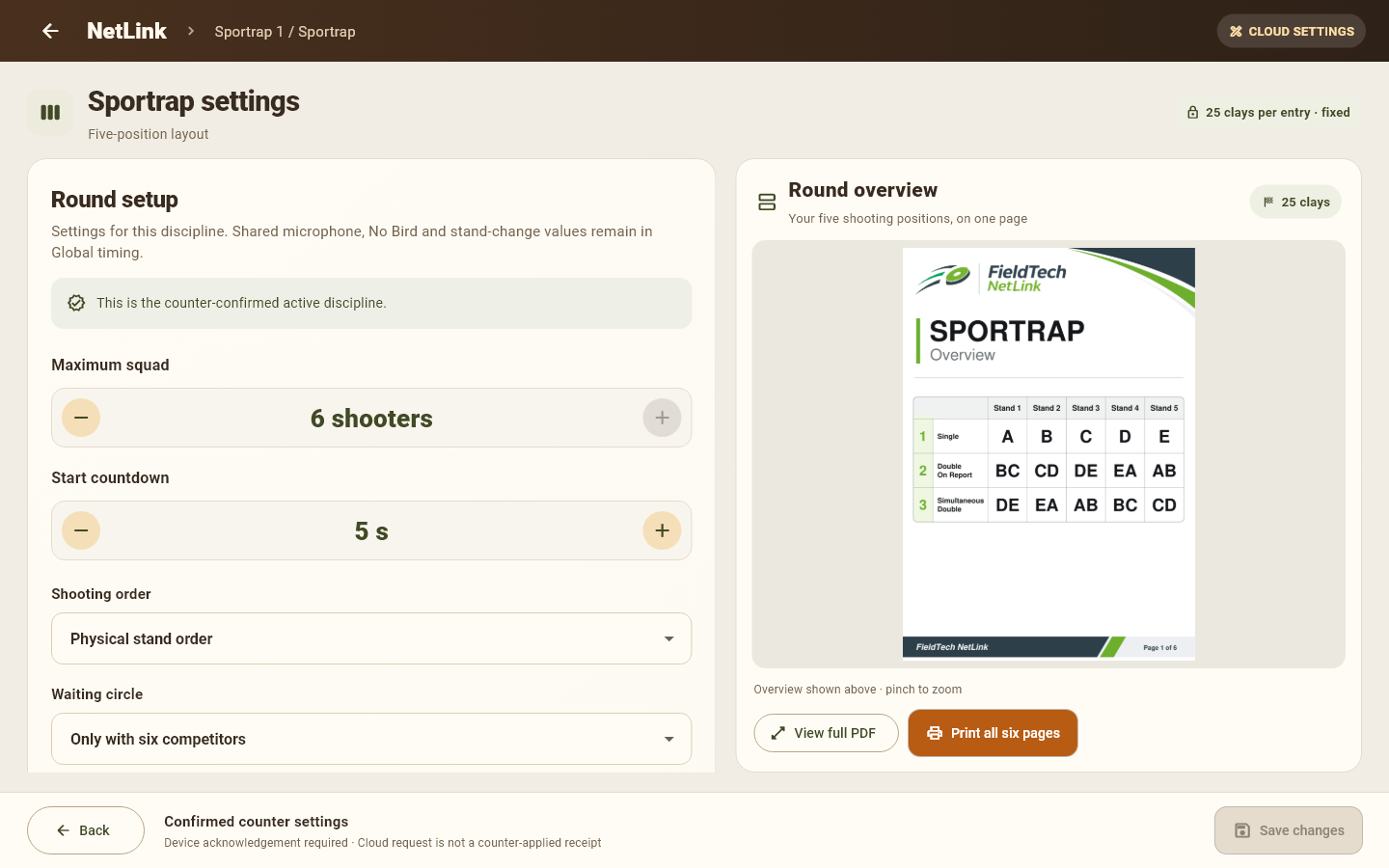
Configure the supported squad size, countdown and progression settings alongside the FieldTech round overview.
Explore this feature →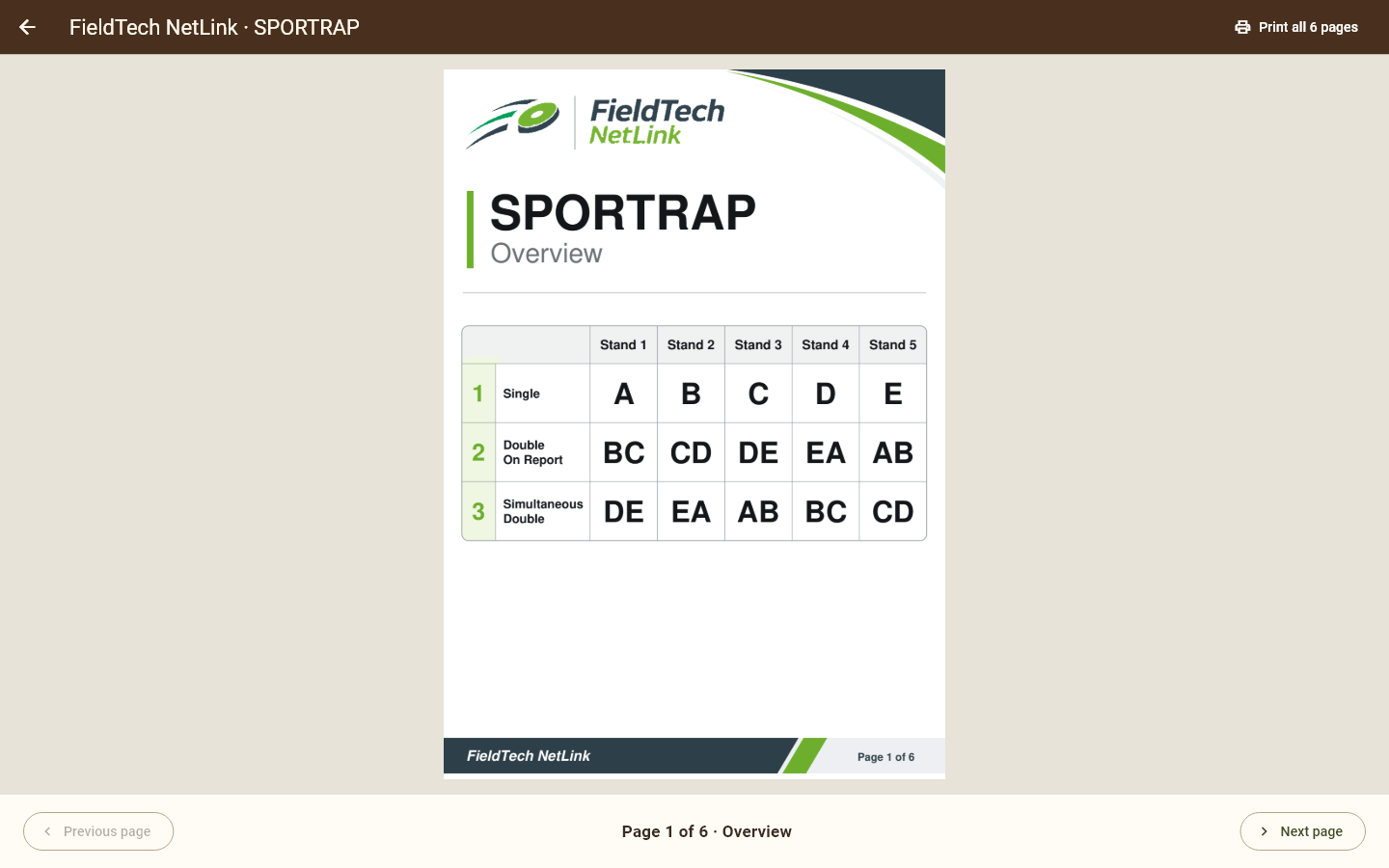
Open the six-page document, with a complete round overview and one page for each shooting position. The original bundled document remains available in the app.
Explore this feature →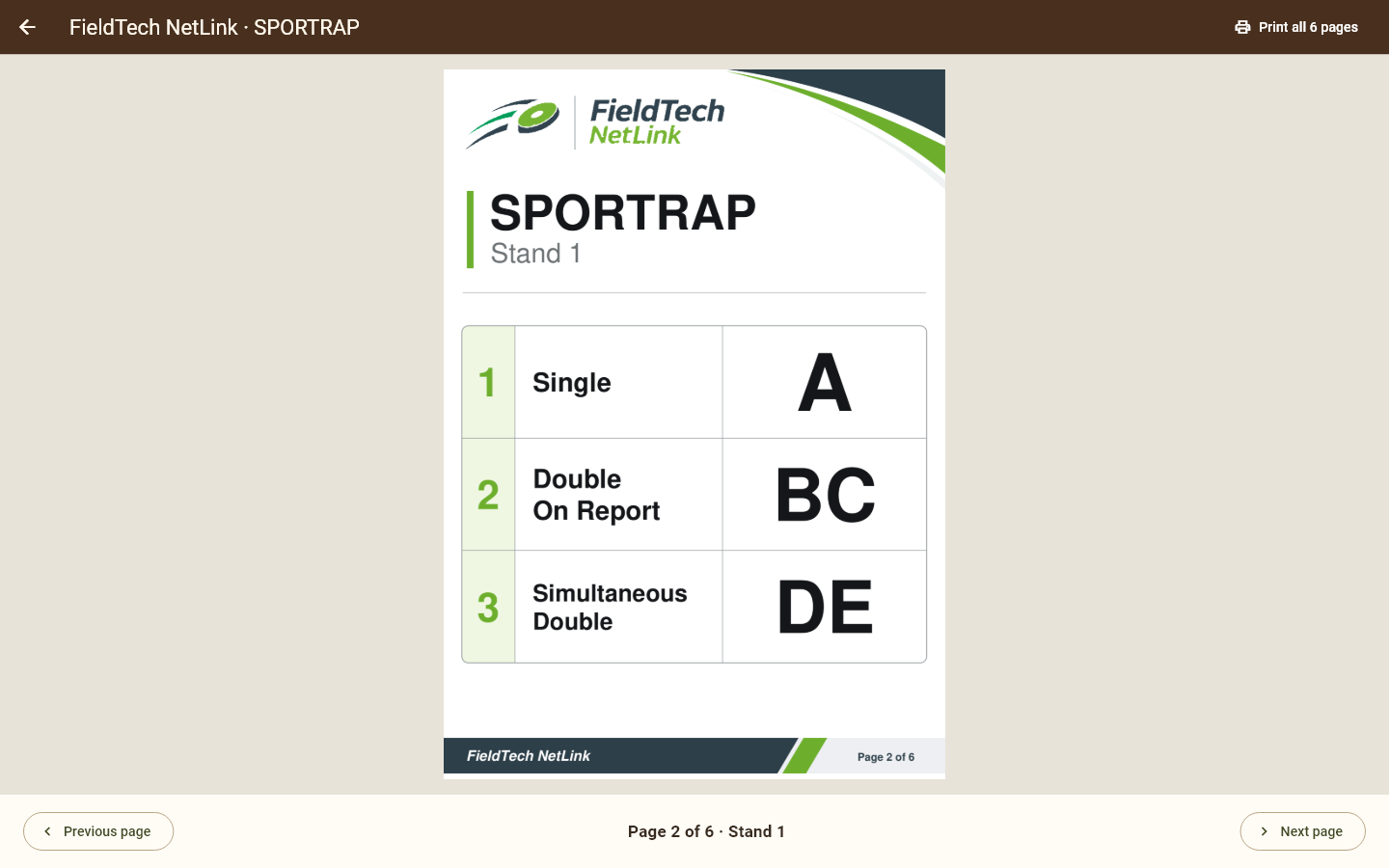
Browse the individual stand cards using the full-document viewer, with the supported option to print the complete document.
Explore this feature →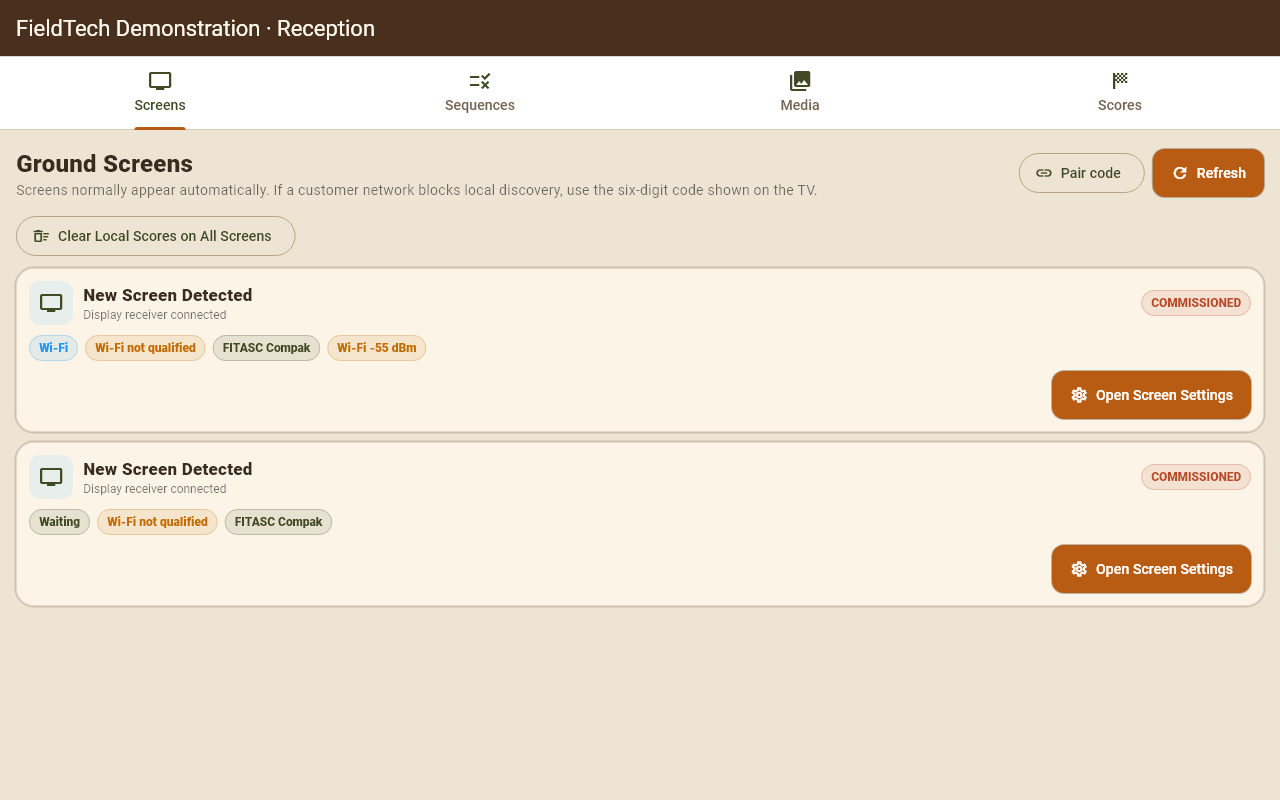
Commission and identify display endpoints, manage supported sequences, media and screen content for the ground.
Explore this feature →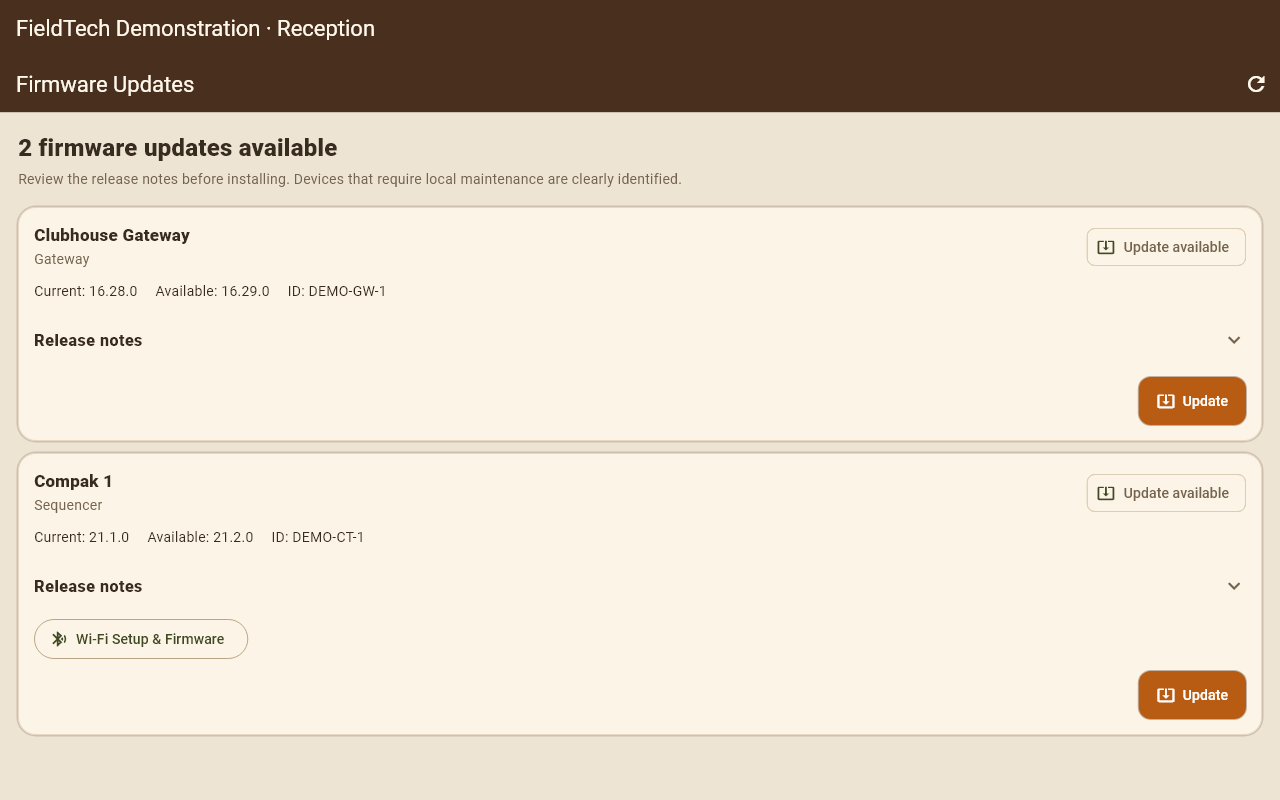
Review available versions and device-specific update actions. Some equipment requires an authorised local Wi-Fi maintenance workflow.
Explore this feature →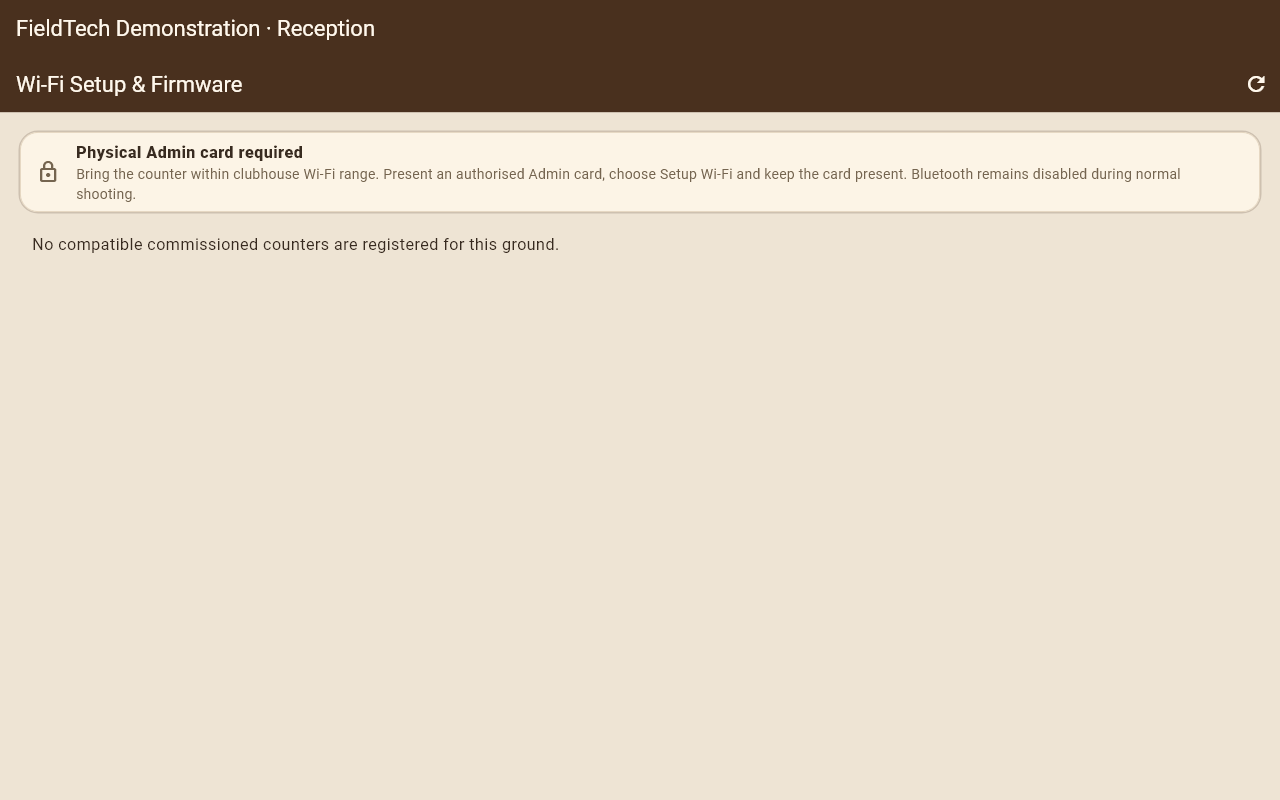
The local setup and firmware workspace explains the physical Admin-card requirement; compatible commissioned counters appear when available.
Explore this feature →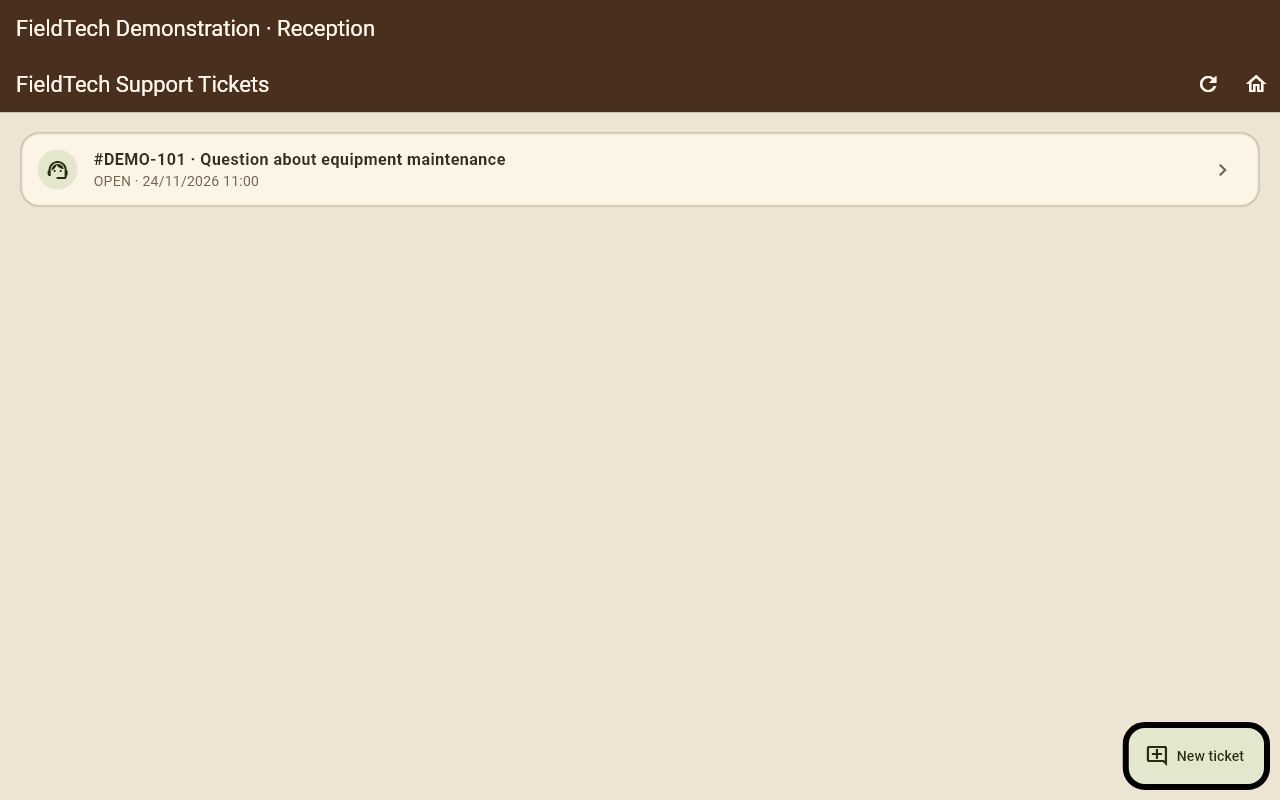
Use the support-ticket workspace to report issues, follow the conversation and keep support history together.
Explore this feature →Additional current-source functions; hardware-dependent and incomplete screenshots are not substituted with fabricated screens.
Search financial documents using the supported customer, document and transaction filters. Open, email and manage the available records within authorised permissions.
Explore this feature →Configure applicable clay-accounting settings, supported payment workflows and membership pricing for the ground.
Explore this feature →Set the ground map and equipment positions in the supported layout editor.
Explore this feature →Configure the approved Reception reader and compatible document-printing workflow. Check physical connections before use.
Explore this feature →